Say Hello to Rooms (Beta): Lead VR Classes and Training with Ease
Summary
Rooms (beta) is our easy-to-use tool for guiding VR classrooms, training sessions, and events. You can view all participant screens in one dashboard and start any app or experience across all headsets at once. With Rooms, your users stay in sync, and you stay in control.
The challenge with leading VR sessions
When leading a VR session, you want to ensure that:
- Everyone is on-task throughout the session
- You can quickly step in to help participants if they experience any issues
Accomplishing these goals can be challenging. Without centralised visibility and control over each participant’s headset, sessions are prone to delays and troubleshooting. Sources of friction include:
- Lack of visibility into headsets: Facilitators can’t see what’s happening inside participants’ headsets.
- Missing or outdated apps: Headsets haven’t been turned on recently, and devices may not have the right apps ready.
- Dead controllers disrupt sessions: One or more dead controllers can completely derail a VR session.
- New-to-VR confusion: Participants unfamiliar with VR interfaces become confused and disengaged.
- Headsets aren’t charged: Users often can’t charge devices while using them, because they need mobility.
- Casting tools are too complex: Existing group-casting solutions are too time-consuming and impractical for busy facilitators.
Rooms was built to make leading VR sessions intuitive and frictionless. View all device screens in real time, start and switch activities, and keep sessions running smoothly.
What can you do with Rooms?
Rooms is already having an impact on how deployments run. Minnesota Diversified Industries, for example, uses Rooms for VR career simulations for indivuduals with disabilities. Delaney Zuniga, who leads operations for the program, says “Being able to facilitate sessions with multiple headsets is a lot easier now. I save a lot of time from having to individually cast each headset to be able to see a live feed."
Check out the full story here.
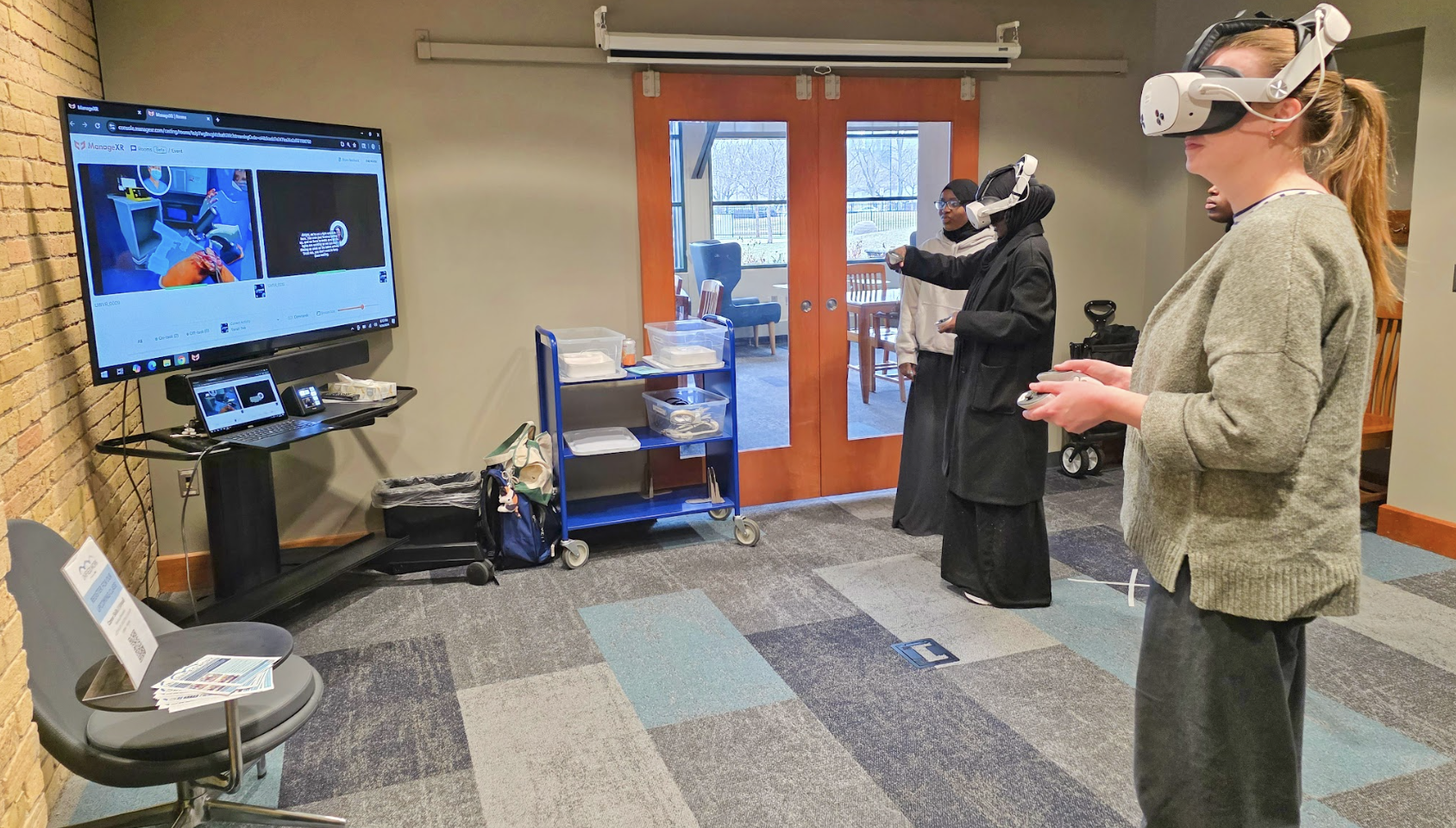
Rooms has the essential features to run VR sessions smoothly:
View All Screens in Real Time
See exactly what each participant sees in real time. You’ll immediately know who’s on track, who’s stuck, and who might need help.

Launch Apps and Activities to All Headsets
Launch any app, WebXR link, or video across every headset in a Room with a single click. Instantly place participants into the right VR experience, so your session stays organised and on track.

Get Alerts to Identify Issues Quickly
If a device is low on battery, low on remote battery, or is experiencing a different issue, Rooms will alert you. Resolve technical issues before they hinder the user’s experience and keep every participant moving forward.

Keep Learners on Task
With the on-task/off-task view, you’ll know instantly when someone moves away from the assigned activity. Then you can relaunch the current activity for off-task participants, keeping all participants in sync.

Get started with Rooms
- Prepare your Room
To create a Room, click “+ Create Room.” Give your Room a name to keep things organized. It will be saved automatically so you can return to it later.
Next, select the devices you want to include in the Room. These are the devices you’ll be able to monitor in real time. You can filter the device list by tag or configuration to easily find and select your devices for your Room.

- Choose what your users will do in your Room
Select a starting activity for your users. When you launch your Room, this activity will automatically open on all users’ devices. If you prefer, you can leave the activity unassigned and let users choose their own VR experience.

- Launch your Room
Click “Start Room.” Your Room will open in a new window for easy monitoring. Click “Start Now” when ready.
If you didn’t select a starting activity, the Room will default to “Participant Choice”, allowing users to choose from any activity available on their device.

Powering VR classrooms, training, and events
Education: VR Classrooms Made Easy
Classroom time is limited and valuable. With Rooms, teachers get a dashboard view of all their students’ screens and can remotely launch apps to keep the class aligned. They can start a session from their computer, leave it running in the background, and return to it for quick check-ins. This allows teachers to move freely around the classroom and provide hands-on support when needed.
Training: Coordinated VR Sessions for Teams
Lead a team through a virtual training session. Facilitators can now observe workers as they progress through training modules, intervene when someone needs help, and keep the entire group aligned.
Events: Lead Engaging VR Experiences
Event facilitators can orchestrate VR demos and experiences for multiple guests. Start experiences for guests simultaneously, monitor their progress, and maintain control over their experience.
Ready to Try Rooms?
Rooms removes the friction from leading VR sessions, giving facilitators a simple way to keep everyone in sync. Try Rooms today with a free trial of ManageXR.
Frequently Asked Questions
Do my devices need to be enrolled in ManageXR to use in a Room?
Yes, devices must be enrolled in ManageXR under your organization in order to be added to a Room. If you do not have a subscription to ManageXR, you can start a free trial here. All free trials have access to Rooms. If you are currently a ManageXR customer, all Premium plans or higher can use Rooms today.
Can I mix different headset models in the same Room?
Yes. Rooms can be used for all VR headset models supported by ManageXR. For Meta devices, they must be running firmware version 68 or higher to view the screen.
Do all my devices in my Room need to be on the same configuration?
No. Devices can be in different configurations and still be added to the same Room.
However, devices can only launch activities that are included in their own configuration. This means that if you plan to launch activities to all devices in a Room, it’s best to ensure they share the same configuration. That way, every device will have access to the activities you want to run.
Do all devices need to be on the same Wi-Fi network?
No. Devices do not need to be on the same Wi-Fi network to be included in a Room. You can start a Room for devices located anywhere, as long as each device has an active internet connection.
Keep in mind that a stable network connection is required for real-time monitoring and for launching activities to devices. If a device goes offline, it will temporarily stop displaying its screen in the Room until it reconnects.
Can I change the activity during a session?
Yes. You can launch apps, WebXR links, and videos directly within a Room. Devices must already have the activity downloaded to it via its configuration in order for you to launch the activity during a session.
What happens if a device disconnects or goes offline during a session?
The device will be marked as “Offline”, and will reconnect once the device is online again.
Is there a limit to how many devices I can include in a single Room?
You can add up to 30 devices to a single Room.
Can participants leave or switch activities on their own?
Yes, participants can leave or switch activities between content available on their devices while in a Room.
What types of activities can I launch through Rooms?
You can launch applications, WebXR links, and video content directly within Rooms. The content must be downloaded to your devices in order to launch. To do this, add your content to a configuration, and add your devices to that configuration.