
500+ Free Meta Apps Available on ManageXR
You can now distribute apps from the Meta Horizon Managed App Store directly to your Quest devices in ManageXR. Take advantage of 500+ free VR apps and deploy them to your fleet in seconds.
What is the Meta Horizon Managed App Store?
The Meta Horizon Managed App Store (under the “Discover Apps” section inside Horizon managed services) is a library of 500+ free apps that developers have made available for classrooms, businesses, training programs and enterprise VR deployments. Any developer can opt in to deploy their app to the Meta Horizon Managed App Store. This library is growing each day with high-quality, verified VR apps!
Now, you can access those apps directly from ManageXR and deploy them to your devices.
What apps can I access through the Meta Managed App Store?
Access some of the most popular free VR apps for education, training, and businesses. Below are just a few of the apps you can now deploy to your devices.
First Steps: Take your first steps in VR and get to know your controllers in this short experience that showcases the power of Oculus.

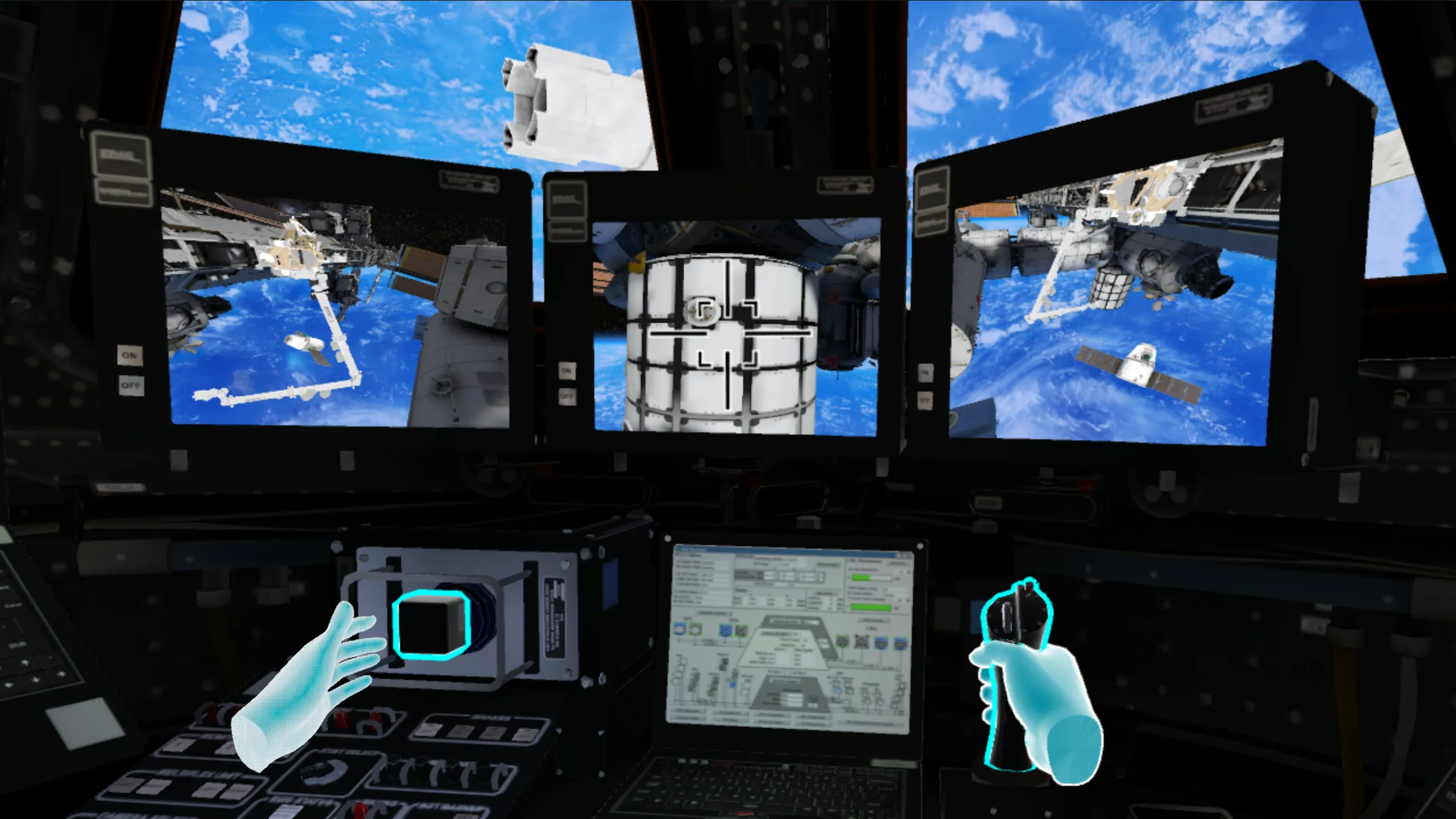
Mission: ISS: Explore the International Space Station in VR and experience life in orbit through interactive missions, spacewalks, and real NASA footage.
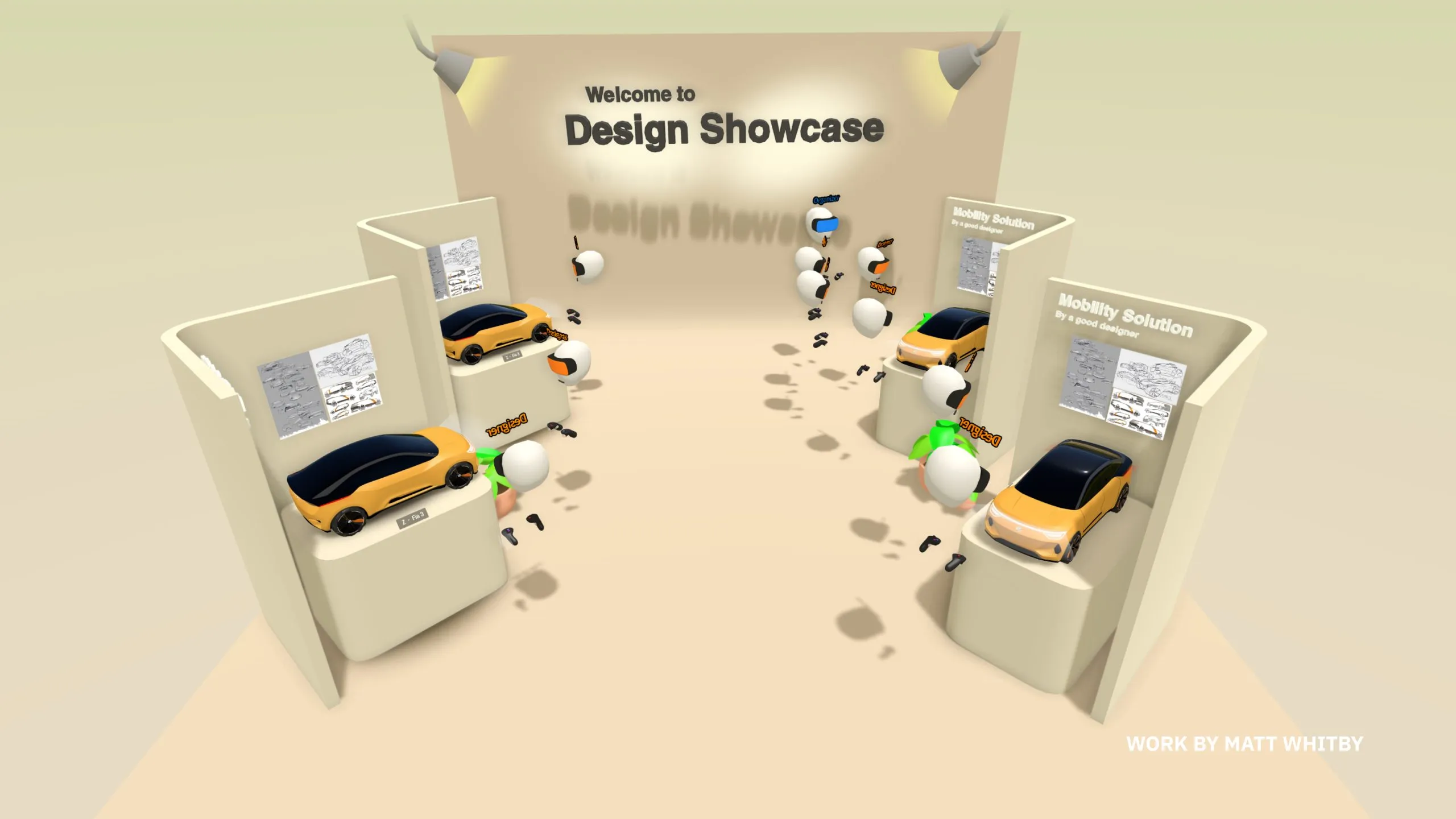
Gravity Sketch: A powerful 3D design tool that lets you sketch, model, and iterate in immersive space. Perfect for rapid concepting and product design.
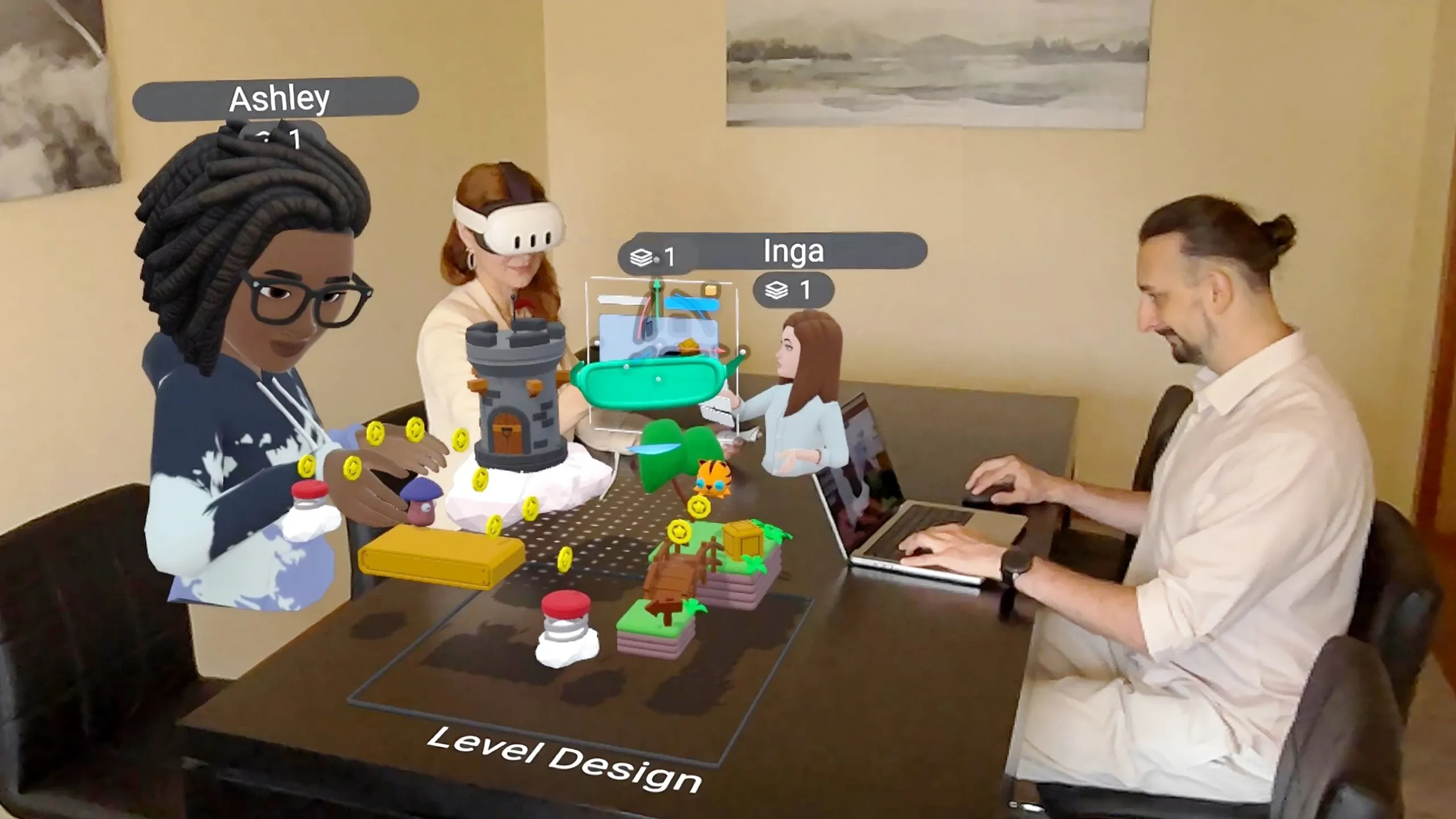
ShapesXR: A collaborative VR prototyping platform for building and testing 3D apps and experiences.
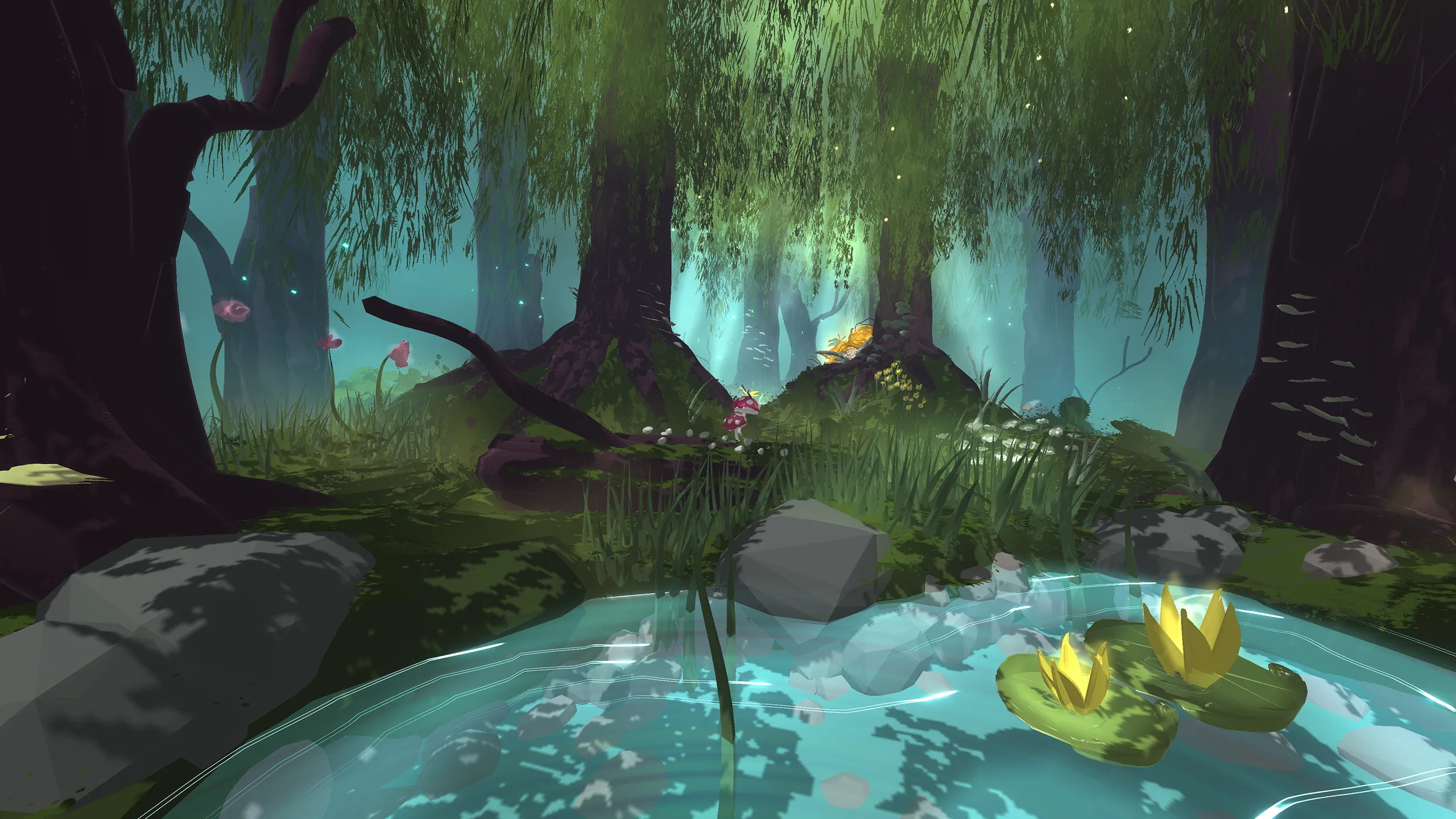
Openbrush: A freeform 3D painting app that lets you create art in the air with immersive brushes, effects, and unlimited creative space.
Ecosphere: In all immersive 360° episodes, embrace the people working with the United Nations to secure the future of our planet. Discover how communities in Fiji and Colombia are coming together to build resilience and safeguard future generations.
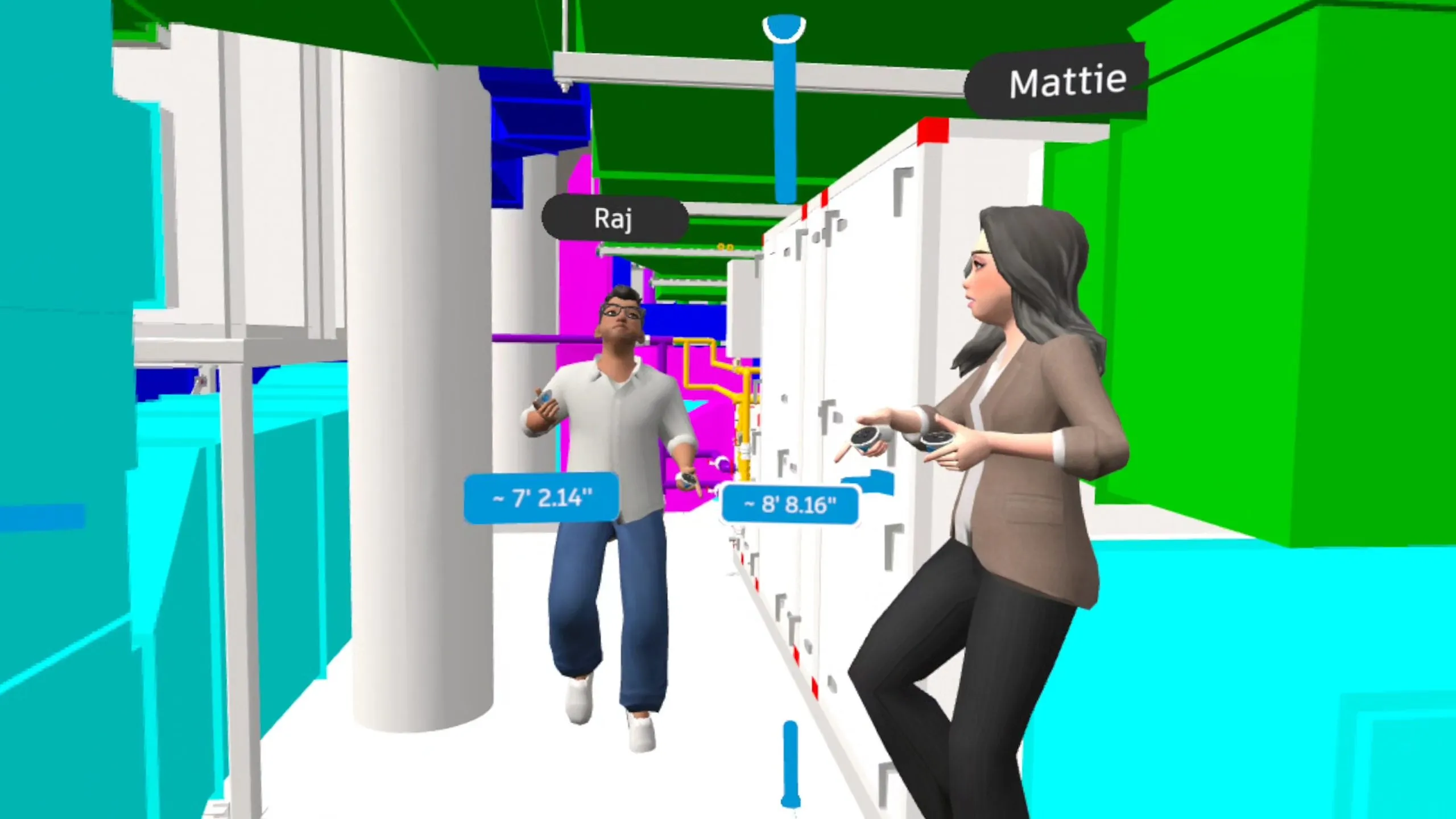
Arkio: An intuitive VR and mixed reality tool for creating architectural layouts. Ideal for design reviews and planning.

Autodesk: A VR-ready design and visualization experience that supports immersive review of 3D models and workflows for engineering and design teams.
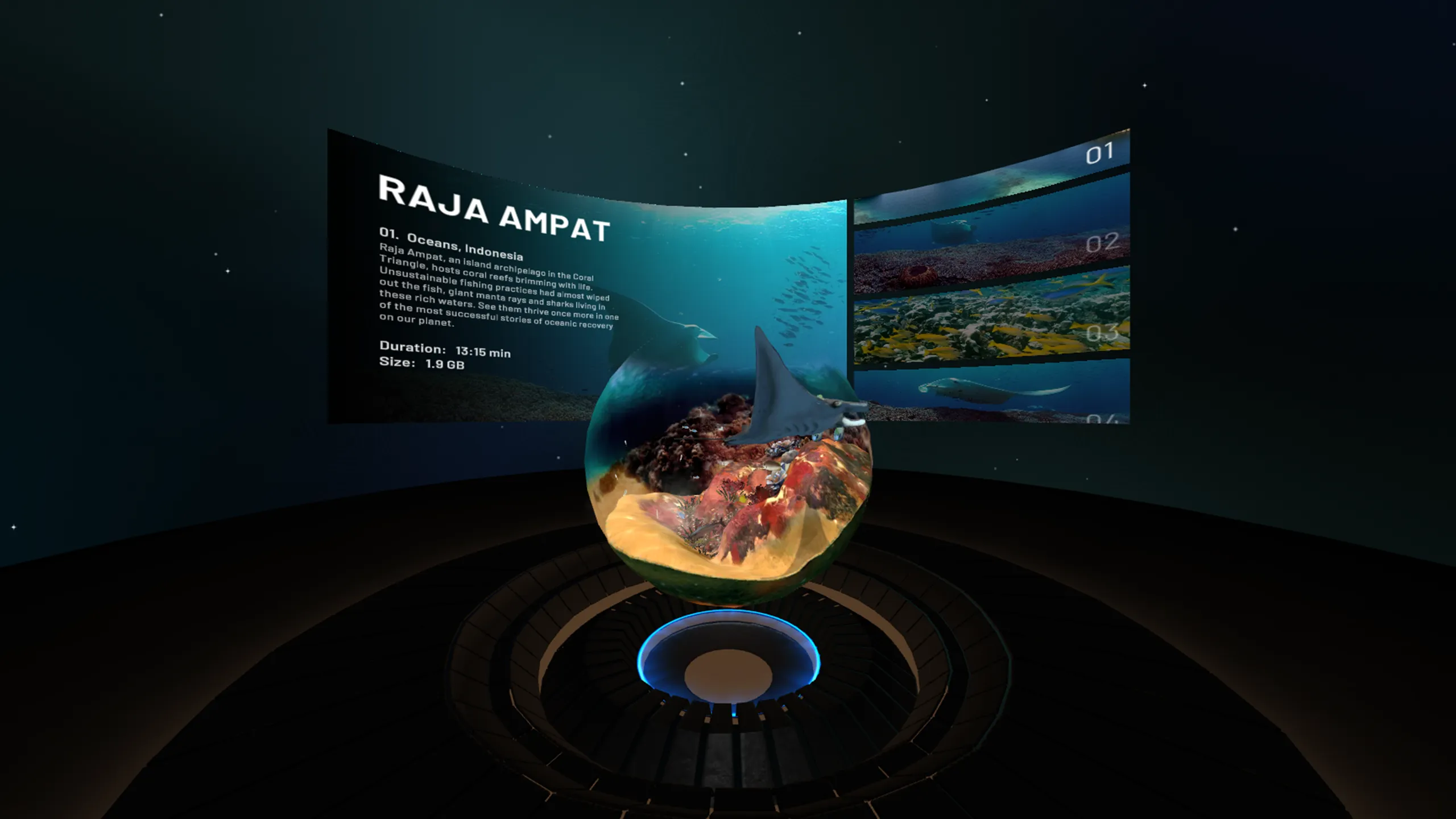
Sphere: An immersive VR media player and viewer designed for exploring 360° video and panoramic content in a simple, comfortable format.
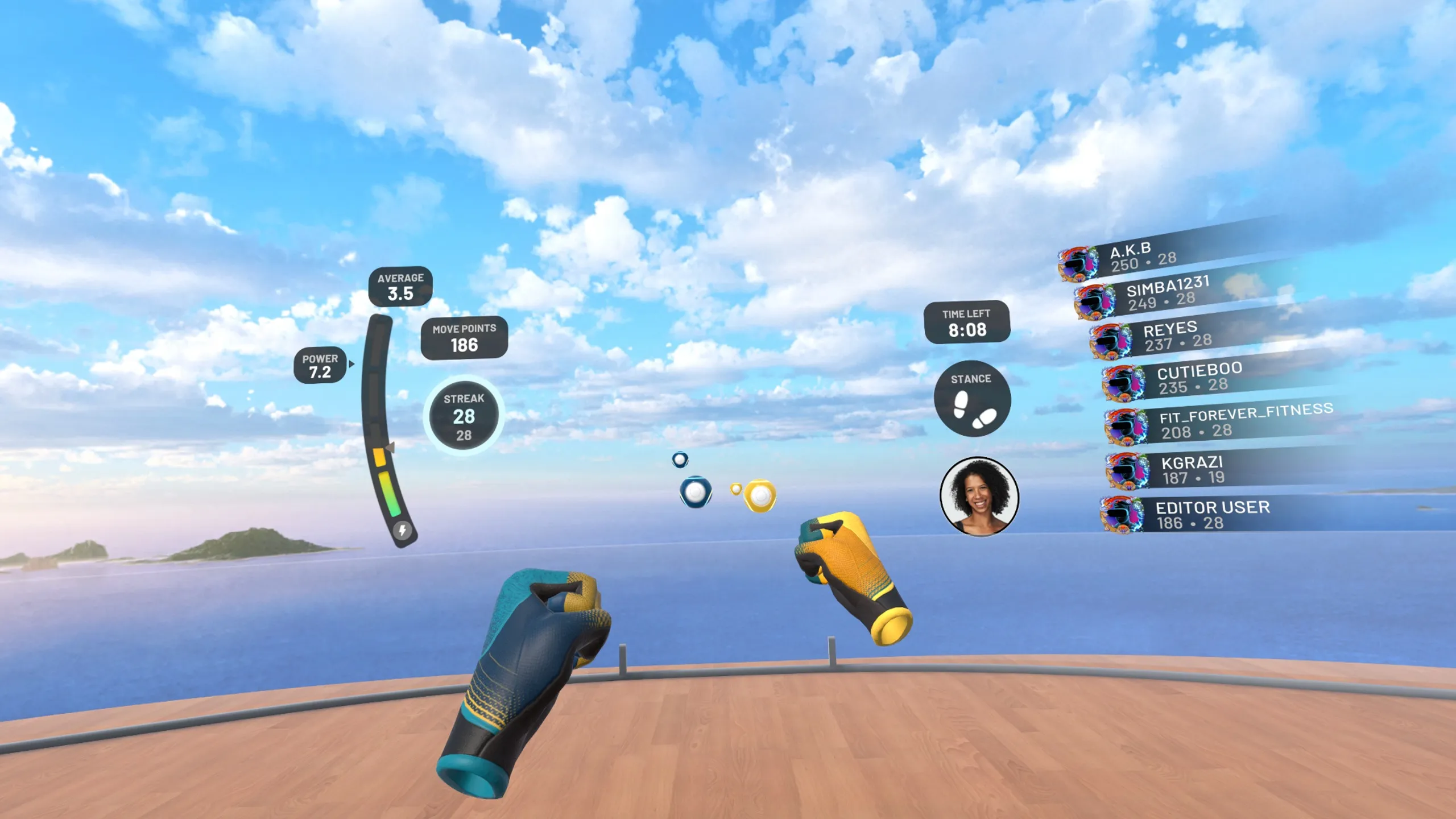
FitXR: A high-energy VR fitness app with boxing, dance, and HIIT-style workouts that make exercise feel like a game.
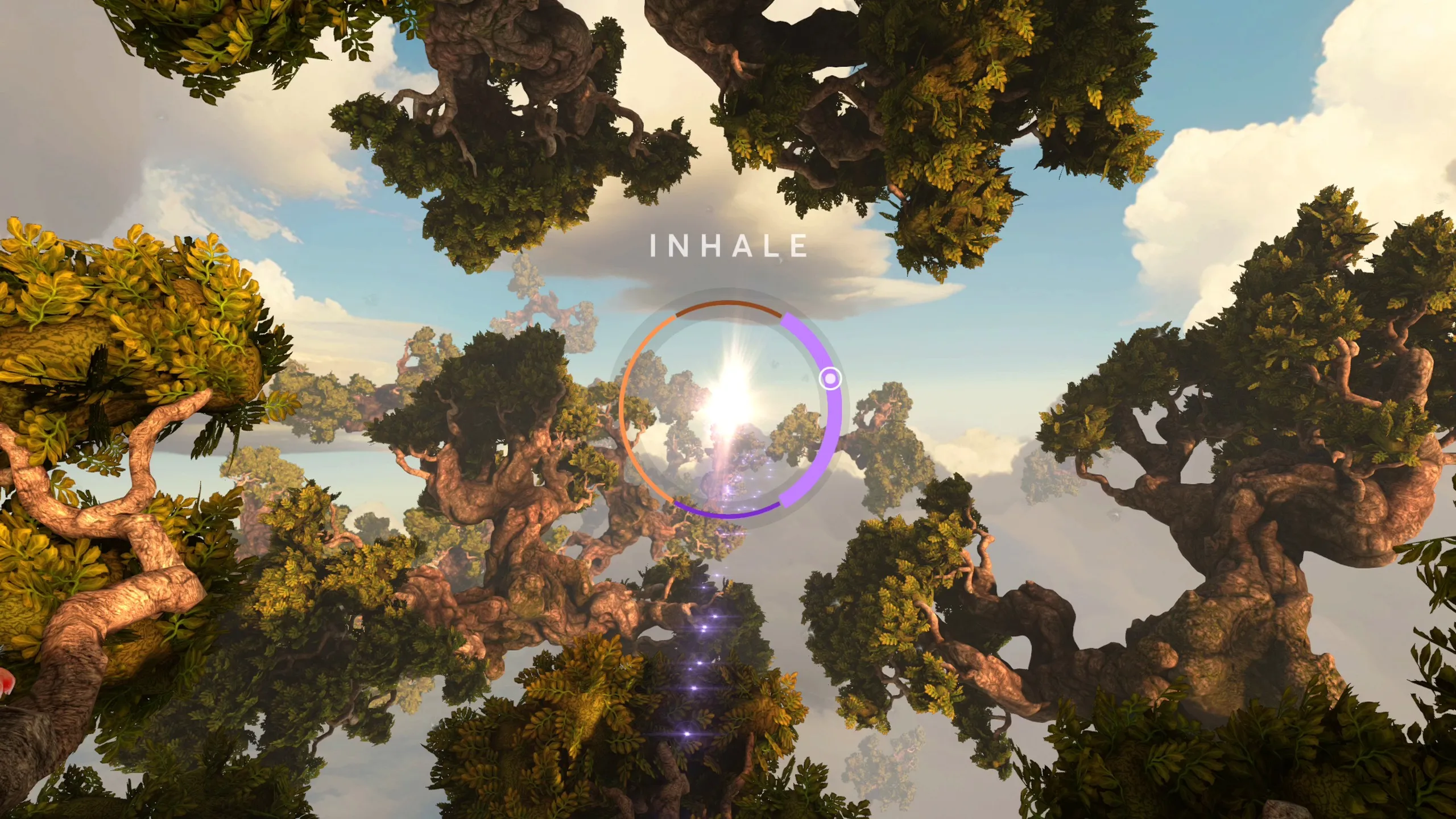
TRIPP: A mindfulness and meditation app built for VR, offering guided breathwork, calming visuals, and focus sessions designed to reduce stress.
You can explore the full catalog of 500+ free apps via Meta Horizon managed services.
How to access the Horizon Managed App Store
If you’re already using Meta Horizon managed services, getting started is simple:
- Sign in to your Meta Horizon managed services account
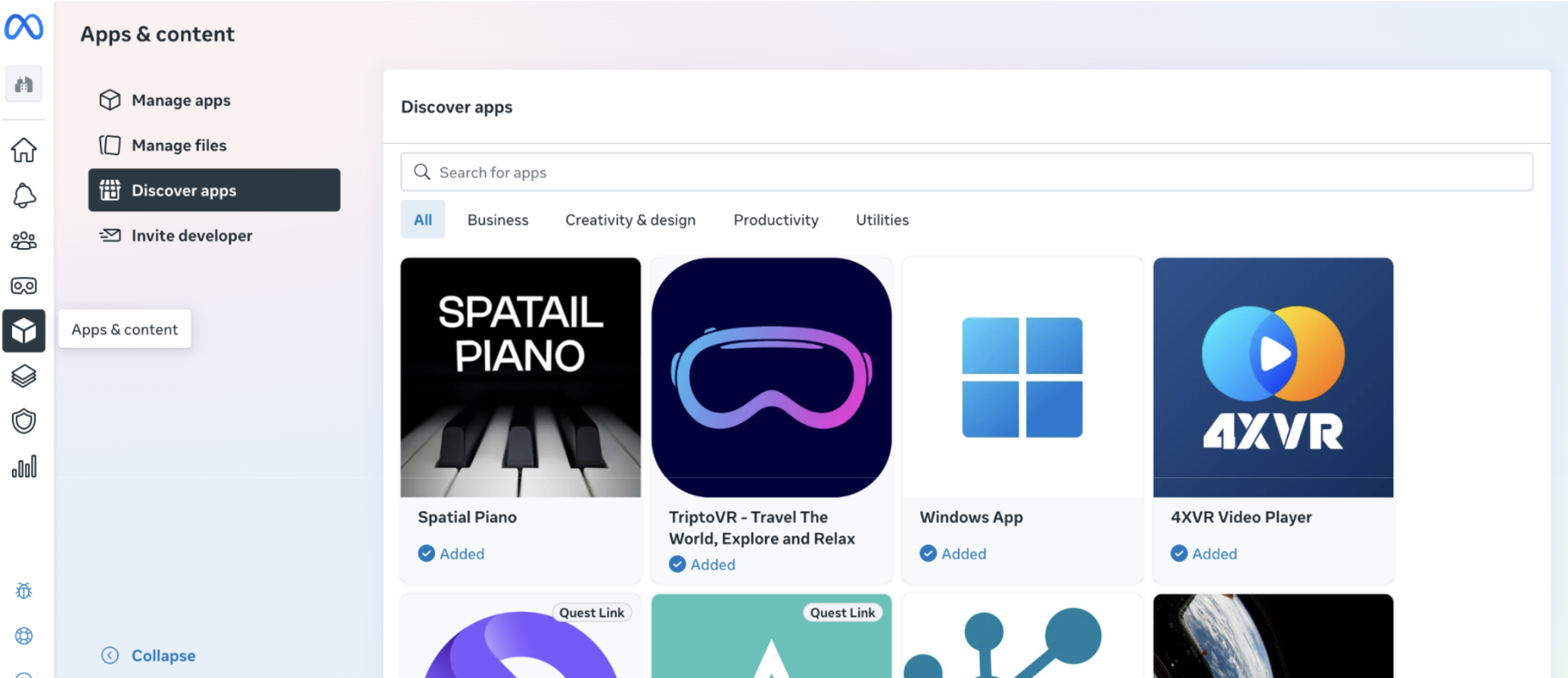
- Navigate to Apps & Content → Discover Apps
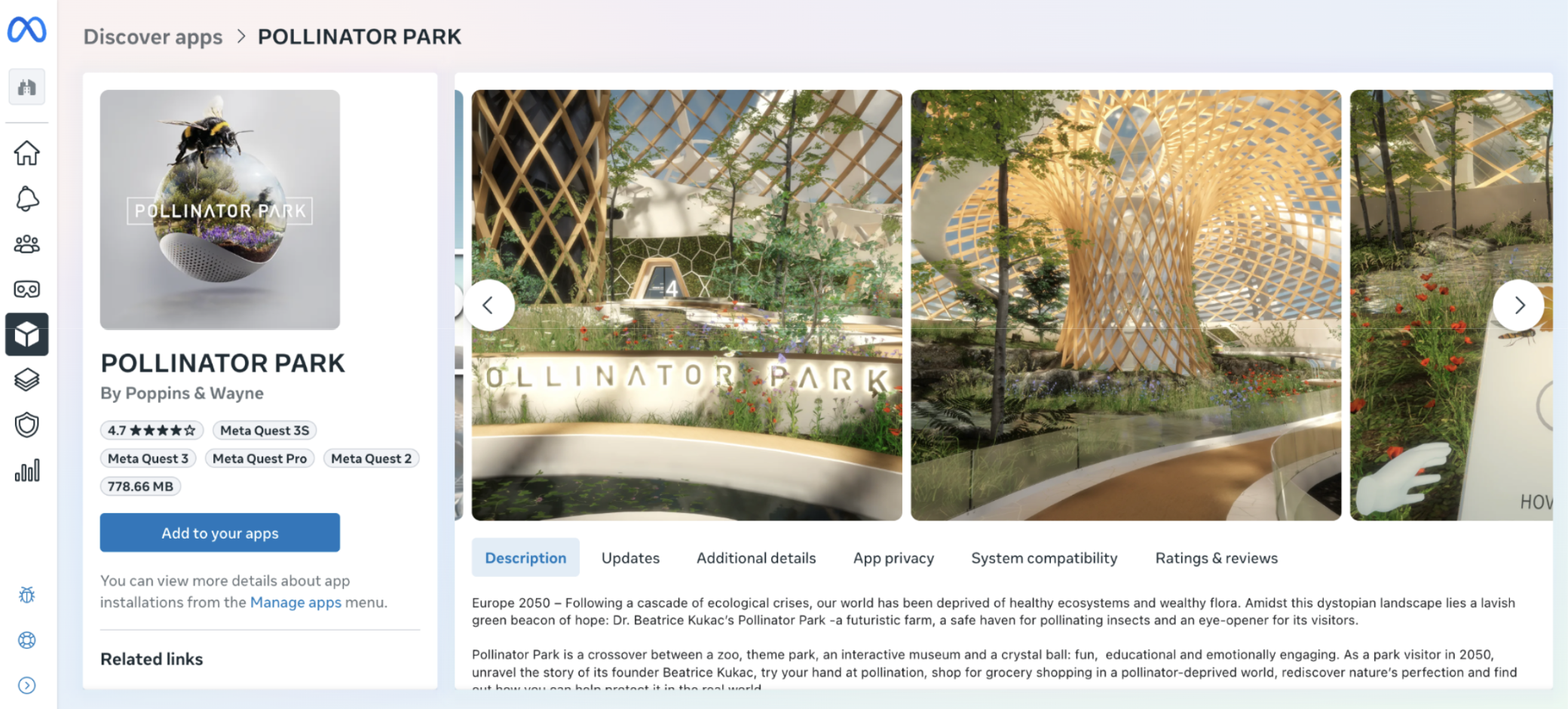
- Browse apps and save the ones you want to your HMS library. Your saved apps will then appear under “Manage Apps”.
How to import Meta Horizon Store Apps into ManageXR
Once you’ve saved your apps in HMS, here’s how to bring them into ManageXR:
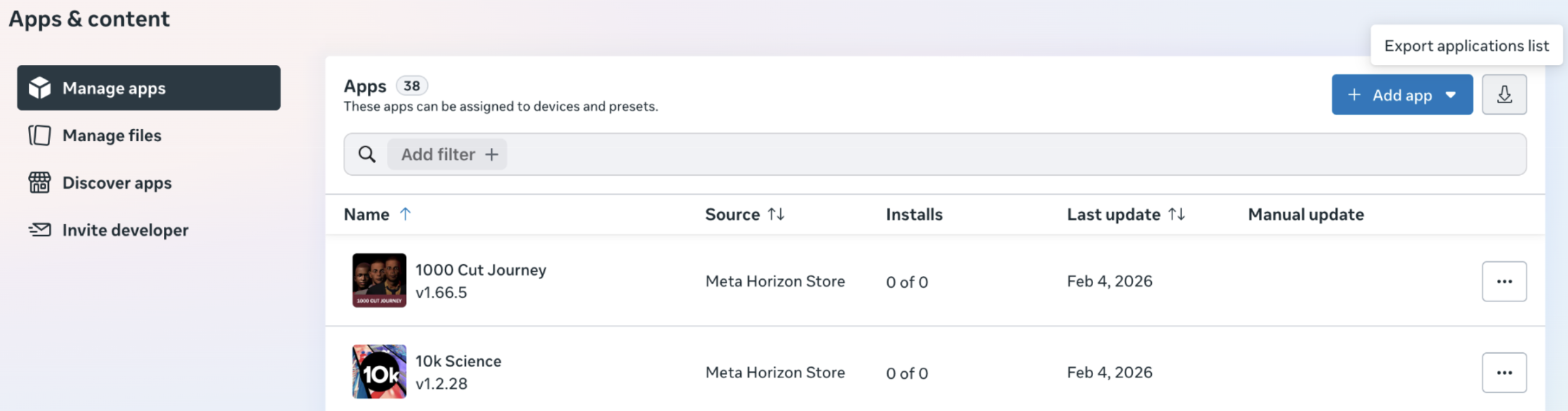
Step 1: Export your app list from HMS
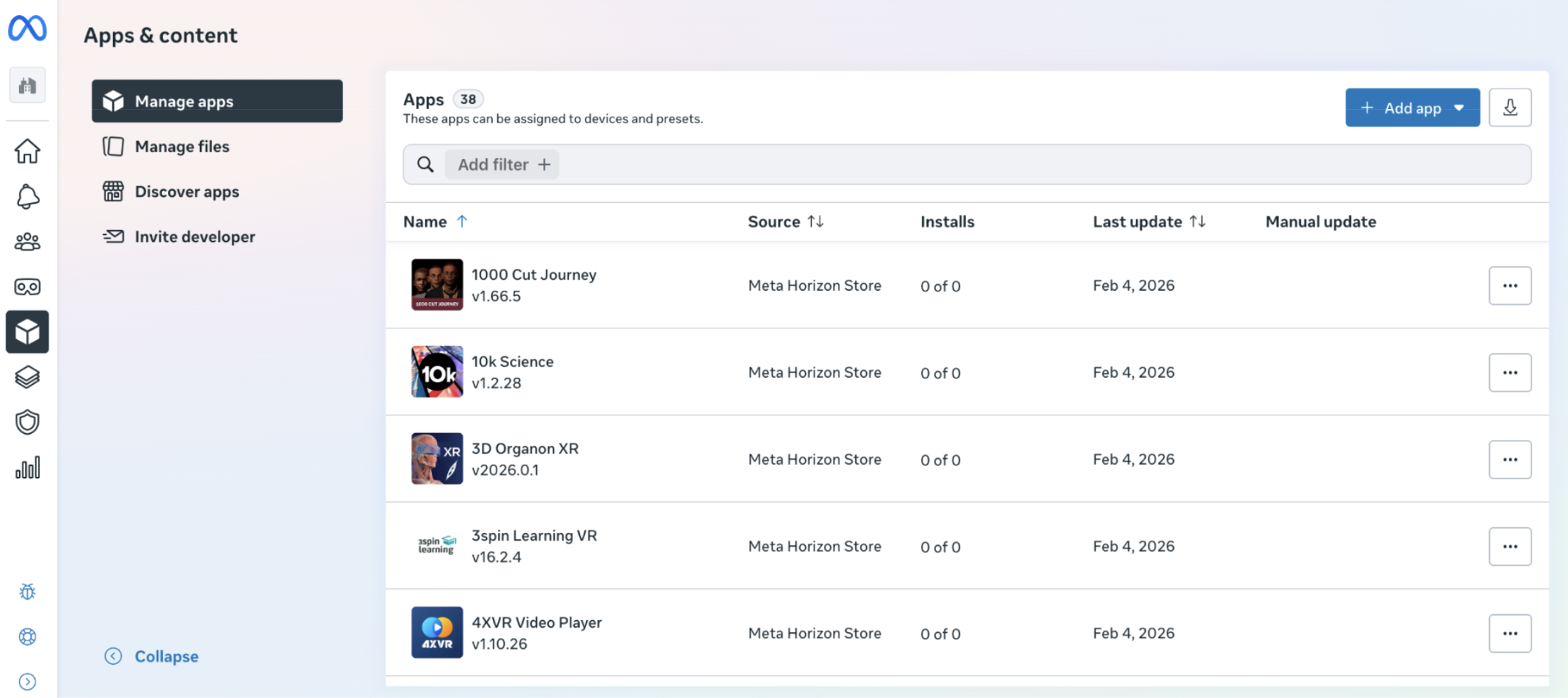
- In your HMS account, go to Apps & Content → Manage apps
- Click the Export button (top right) to download a CSV list of your saved apps
Step 2: Upload the CSV into ManageXR
- In ManageXR, go to VR Content
- Click Add Content
- Select Meta Horizon Store Apps
- Upload your exported CSV
- Click Import Apps
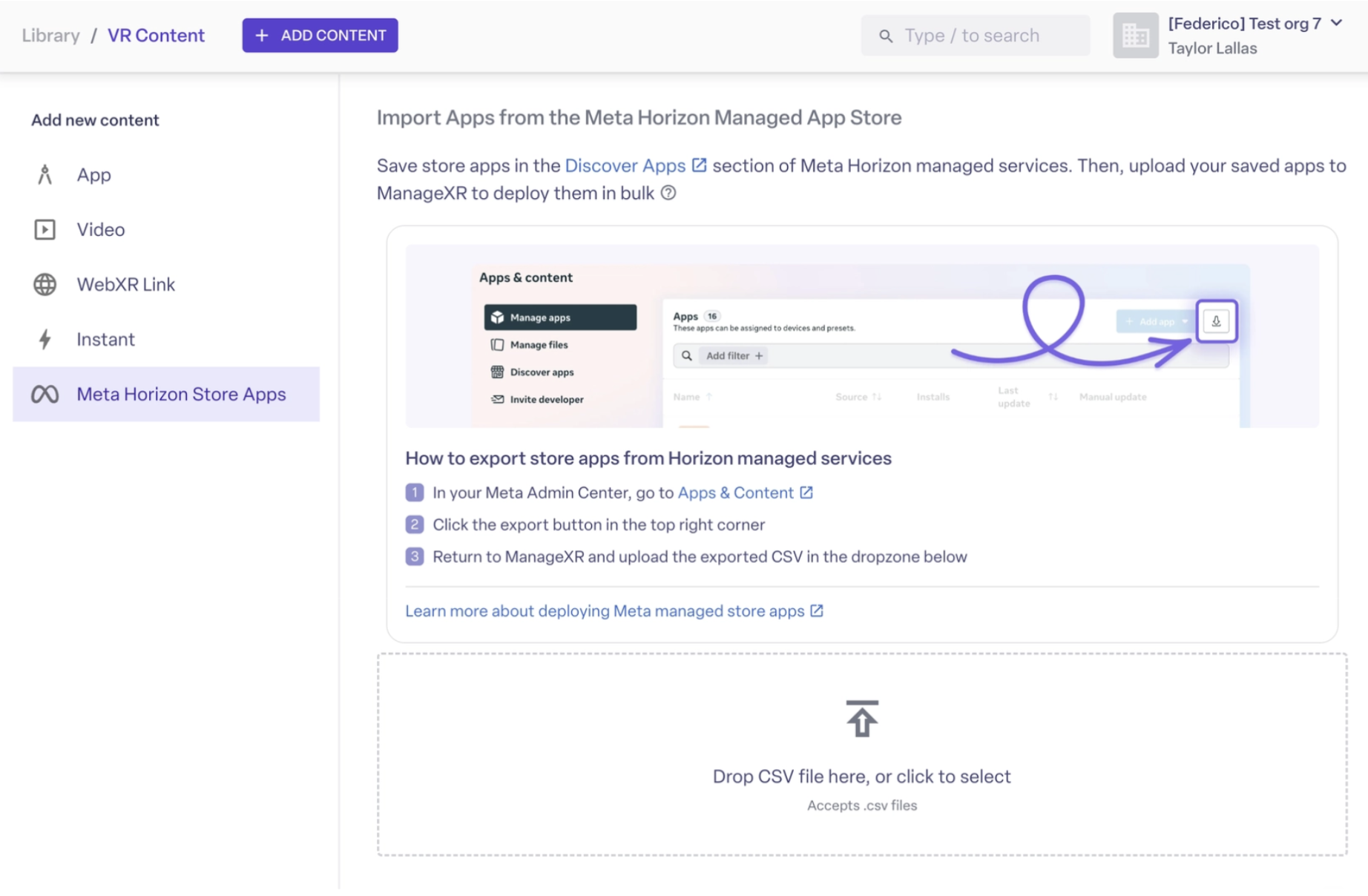
That’s it! Now, you can find your saved Meta Managed App Store content in your VR content library.
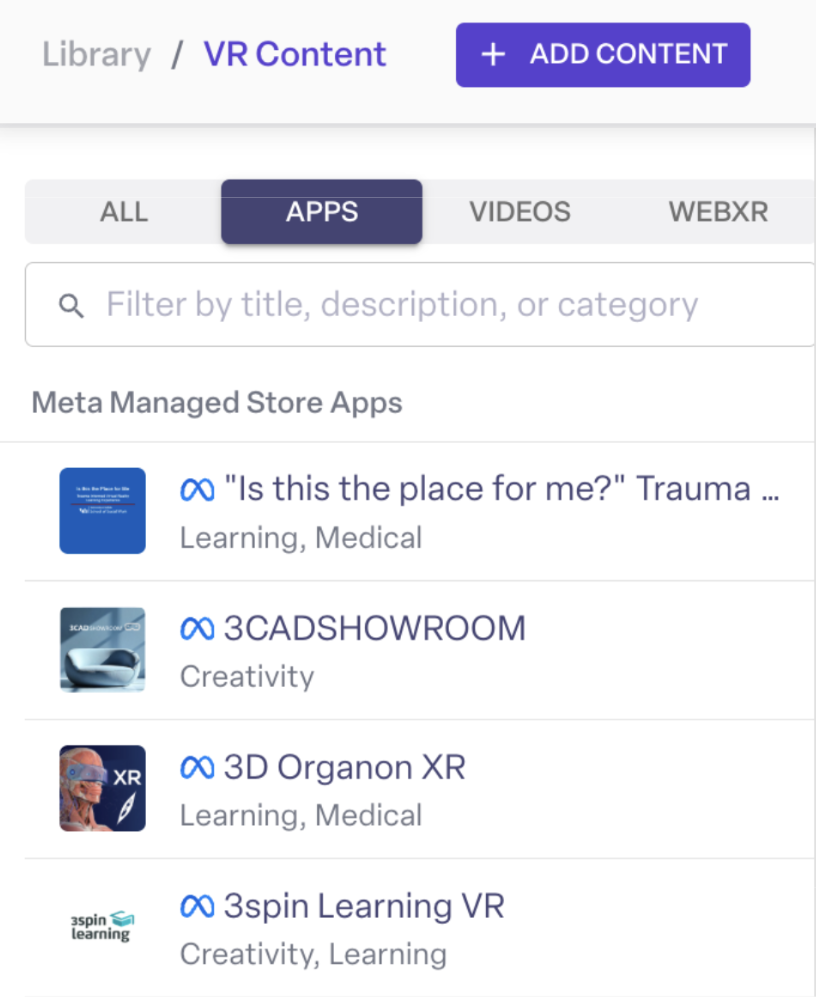
Deploying your imported apps
From here, you can deploy them to your devices using configurations, just as you would with any other XR app, video, WebXR link, or file you upload to ManageXR.
Why VR content matters
Great VR content is what ultimately makes your VR program impactful. Without the right apps, even the best hardware will feel undervalued. This integration makes it easier to scale high-quality VR experiences by giving teams access to the same app library as the Meta Horizon Managed App Store.
While this is a subset of the full consumer Meta Horizon Store, it includes 500+ free apps designed for businesses and schools, and it removes the need to manage APK files for bulk deployment. And the best part: this library will continue to grow over time! App developers simply need to check a box when publishing to the Meta Horizon store in order to make their apps available to ManageXR. More than 500 developers have already done this, and more will continue to do so over time.
Start exploring free apps today
If you’ve enrolled your Quest devices via Meta Horizon managed services, you can start saving apps now.
Not using Quest devices? ManageXR also offers a variety of free apps compatible with other hardware, all available in Discover XR.
And when you’re ready to take things a step further, you can use Rooms to lead guided VR classes, bringing groups into the same experience at the same time for training sessions, lessons, guided experiences, and more. You’ll have full visibility into every user’s screens, whether they’re exploring the ISS, running a FitXR workout, prototyping in ShapesXR, or painting in Openbrush. ManageXR gives you the tools to scale immersive learning with the best content available today.


