
Deploying apps, WebXR, and videos to your VR devices
Apps, WebXR links, and videos all reach your Meta Quest headsets the same way. This guide walks you through adding each type of content during your trial and what to know about Meta's device modes before you deploy.
How content works on ManageXR
Every piece of content reaches your headsets the same way: add it to your library in VR Content, deploy it in a configuration, and let devices sync. Headsets that are offline update when they reconnect.
- Apps. Upload your own APKs, add free demos from the ManageXR Marketplace, or import Meta Horizon Store apps.
- WebXR links. Deploy browser-based VR experiences with nothing to install, just a URL.
- 180° and 360° videos. Play immersive video in ManageXR's built-in player, with no separate player app to install.
Add apps
Apps come from four places, depending on where the app lives today and which device mode you use. Start in VR Content and click Add Content.
- Your own APK. Drop in the .apk (and .obb if it has one) and click Create App. Best for custom or in-house apps.
- ManageXR Marketplace. Open Marketplace, filter by category or headset, and click Add to Library on a free partner demo. It shows under Instant Apps.
- Meta Horizon Managed App Store (Shared Mode). Save apps from Discover Apps in Meta Horizon managed services and export the CSV from Apps & Content. In ManageXR, choose Meta Horizon Store Apps, upload the CSV, and click Import Apps.
- Meta Horizon Store (consumer, Individual Mode). The user signs in with a Managed Meta Account and installs or buys apps in-headset. It's on by default in Individual Mode, and admins can turn it off.
New versions of your own APKs go up from the app's page in VR Content, and the latest version is deployed by default.

Add WebXR links
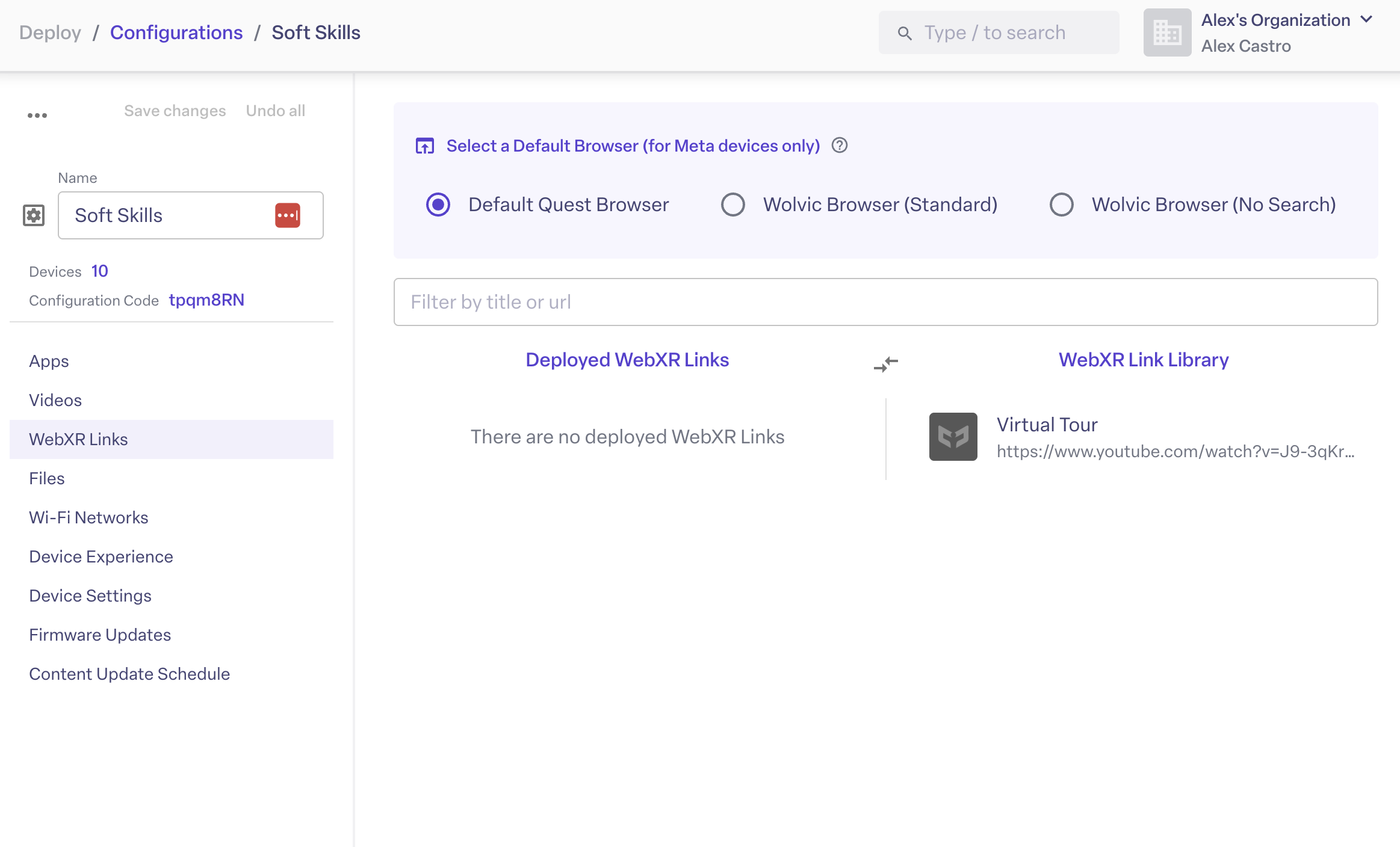
WebXR lets you deploy browser-based VR experiences with nothing to install. Not sure where to start? Try one from our Top WebXR Links list.
- Create the link. Go to VR Content → Add Content → WebXR Link, paste the URL, add a title, and click Create Link.
- Deploy it. Add it to a configuration like any other content.
- Pick the browser. In that configuration, open WebXR Links and choose Quest Browser, Wolvic Browser (Standard), or Wolvic Browser (No Search).
We recommend Wolvic for a more stable experience. Wolvic supports kiosk mode, and Wolvic Browser (No Search) hides the search bar.
Add 180° and 360° videos
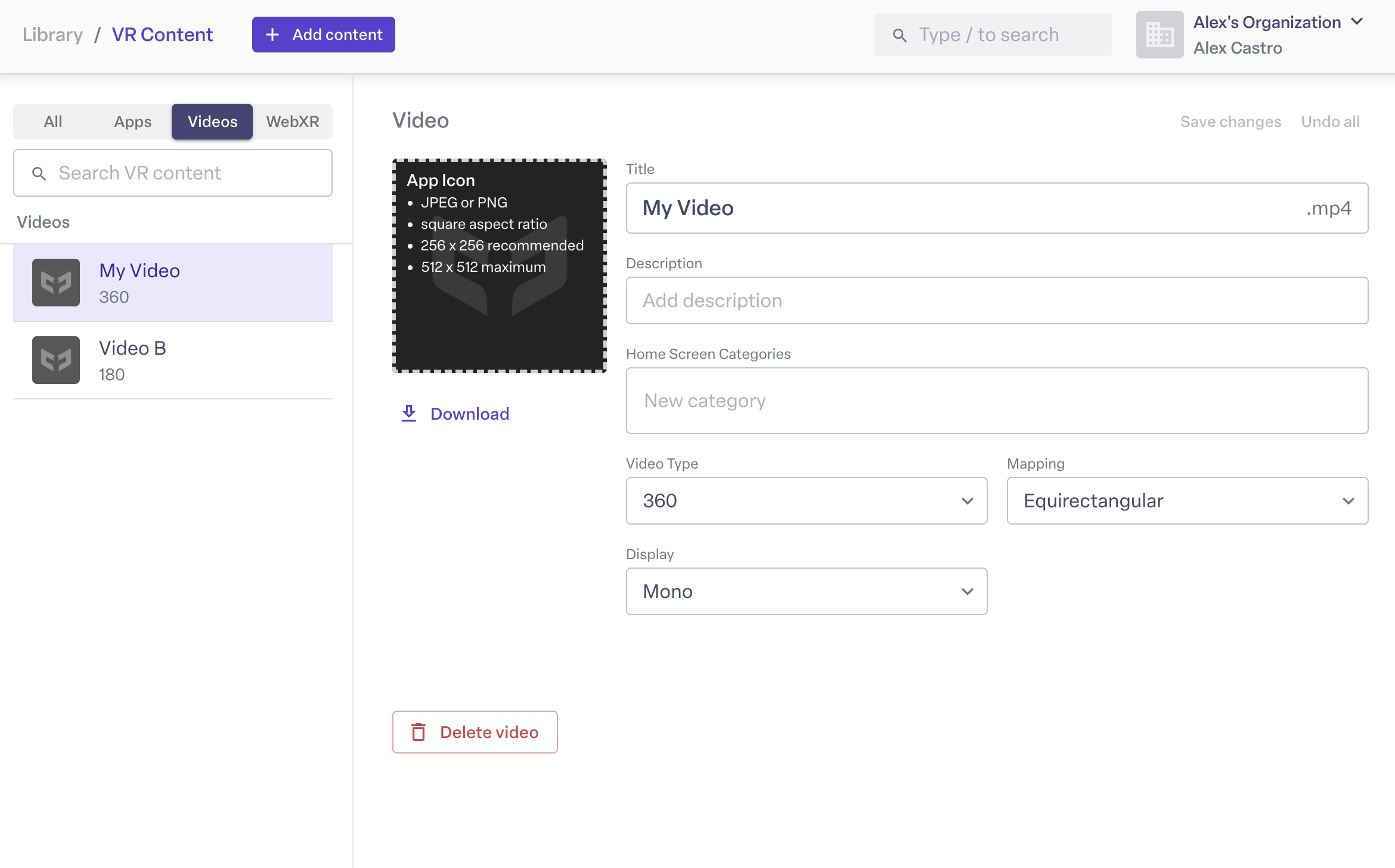
Go to VR Content → Add Content → Video and upload an .mp4 or .mkv file (H.264 video, AAC audio). Then set how it was filmed:
- Video type. 2D, 180, or 360.
- Mapping. Equirectangular or Cubemap.
- Display type. Mono or Stereo, with top/bottom or left/right packing.
Add a title, click Create Video, and deploy it to a configuration. If you're unsure which settings to use, ask whoever produced the video.
Deploy to your headsets
Open a configuration, click Deploy next to each app, WebXR link, or video, and click Save Changes. Every headset on that configuration syncs automatically, and offline devices update when they reconnect.
You can also launch content and pause videos remotely from the web console, or lock a headset to a single app or video with kiosk mode.

Choose your Meta Quest device mode
Quests enrolled through Meta Horizon managed services run in one of two modes. Your choice changes which store apps you can use.
Shared Mode
For headsets used by many people. No Meta account is needed on the device, and kiosk mode is supported. Store apps come only from the Meta Horizon Managed App Store.
Individual Mode
For headsets assigned to one person. Each device needs a Managed Meta Account, and kiosk mode isn't supported. Users can install or buy apps from the consumer Meta Horizon Store.
Before you deploy: Shared Mode and Meta Store apps
Most surprises with Meta Store apps come down to device mode. Here's what to know before you deploy.
Shared Mode has no in-headset store
Store apps must come through the Meta Horizon Store import in VR Content.
Free apps only, and not all of them
Paid apps aren't offered, and only developers who opt in are listed (about 500+ apps vs. 5,000+ on the consumer store).
Some apps won't launch
Apps that check a license at startup only work in Individual Mode, and some need their own account or subscription.
Store apps install on Meta's schedule
ManageXR can't show their download progress, and new apps need a fresh CSV import.
Pick the mode before enrolling
Moving from Individual to Shared is easy but removes apps bought in-headset. Moving from Shared to Individual needs a factory reset and re-enrollment.
App not in the store? Check the ManageXR Marketplace, or ask the developer to share the app with you on ManageXR. Questions during your trial: support@managexr.com.
FAQs
Can I deploy paid Meta Store apps to Shared Mode headsets?
No. The Meta Horizon Managed App Store only offers free apps from developers who opt in. Paid apps can only be bought in-headset on Individual Mode devices.
Why won't a Meta Store app launch on my headset?
Apps that check a license at startup only run in Individual Mode. Some apps also need their own account or subscription with the developer, or don't support every headset model or firmware version.
Which browser should I use for WebXR links?
We recommend Wolvic for a more stable experience. Choose Wolvic Browser (Standard) or Wolvic Browser (No Search) in your configuration's WebXR Links settings. Wolvic is currently available on Quest devices only.
What video files can I upload?
MP4 or MKV files with H.264 video and AAC audio, in 2D, 180°, or 360°. For smooth playback, stay at or under 3840×1920 at 60fps, or 3840×3840 at 30fps for stereo.
Do offline headsets still get my content?
Yes. Devices pick up the latest configuration when they next sync, so offline headsets update as soon as they reconnect.
Who can I contact during my trial?
Email support@managexr.com, or book a 1:1 onboarding session with our team at managexr.com/demo.