
ROOMS
Confidently lead VR classrooms and trainings with Rooms
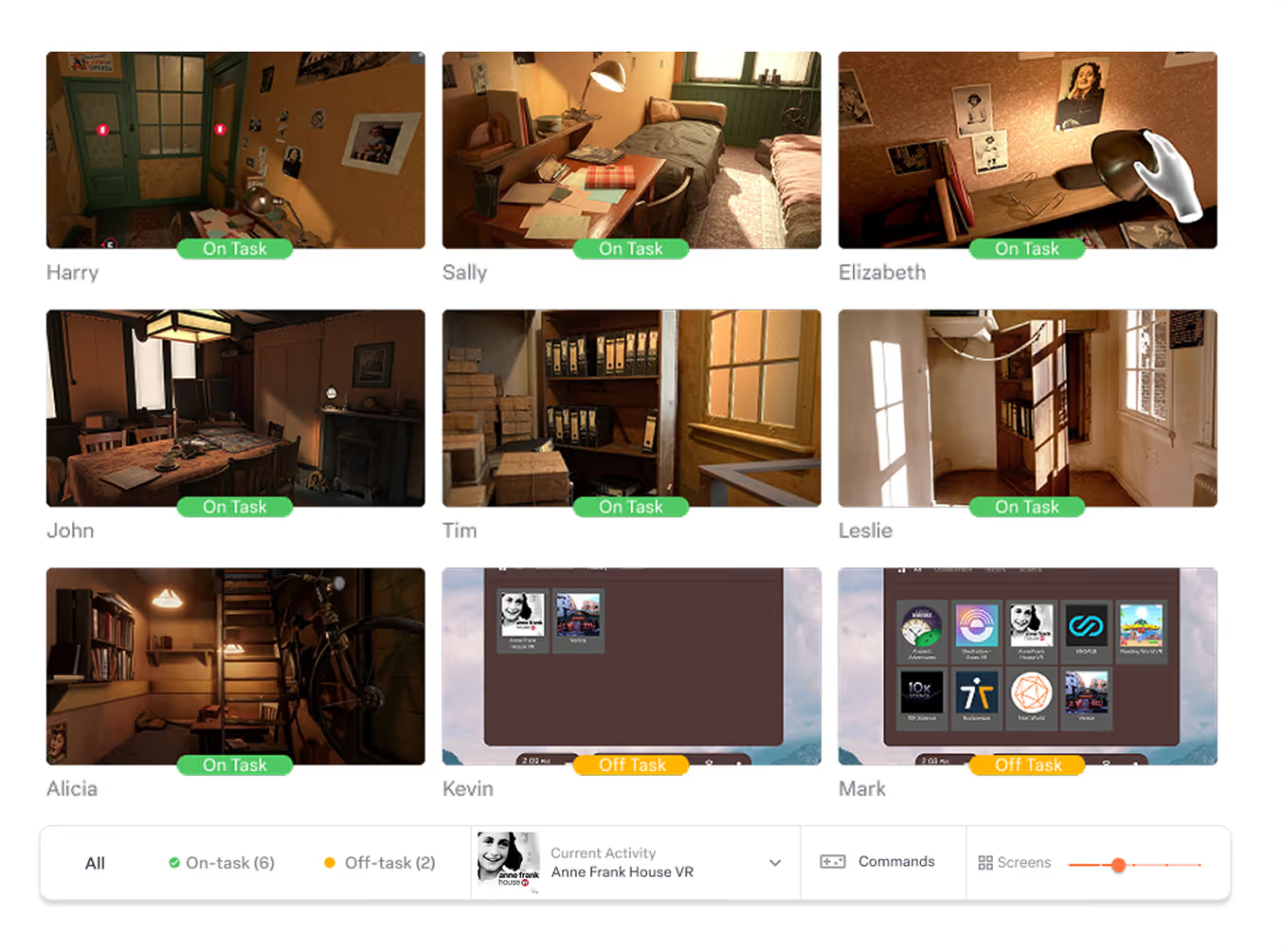
See what learners see in-headset, remotely guide them through activities, and keep them on task
Trusted by 900+ school districts worldwide







A simple tool for managing VR classrooms
With ManageXR's Rooms, your students stay in sync in VR, and you stay in control.
Get real-time visibility into learner's headsets
Spot learners who are off task or need extra guidance
Spend less time troubleshooting, more time teaching
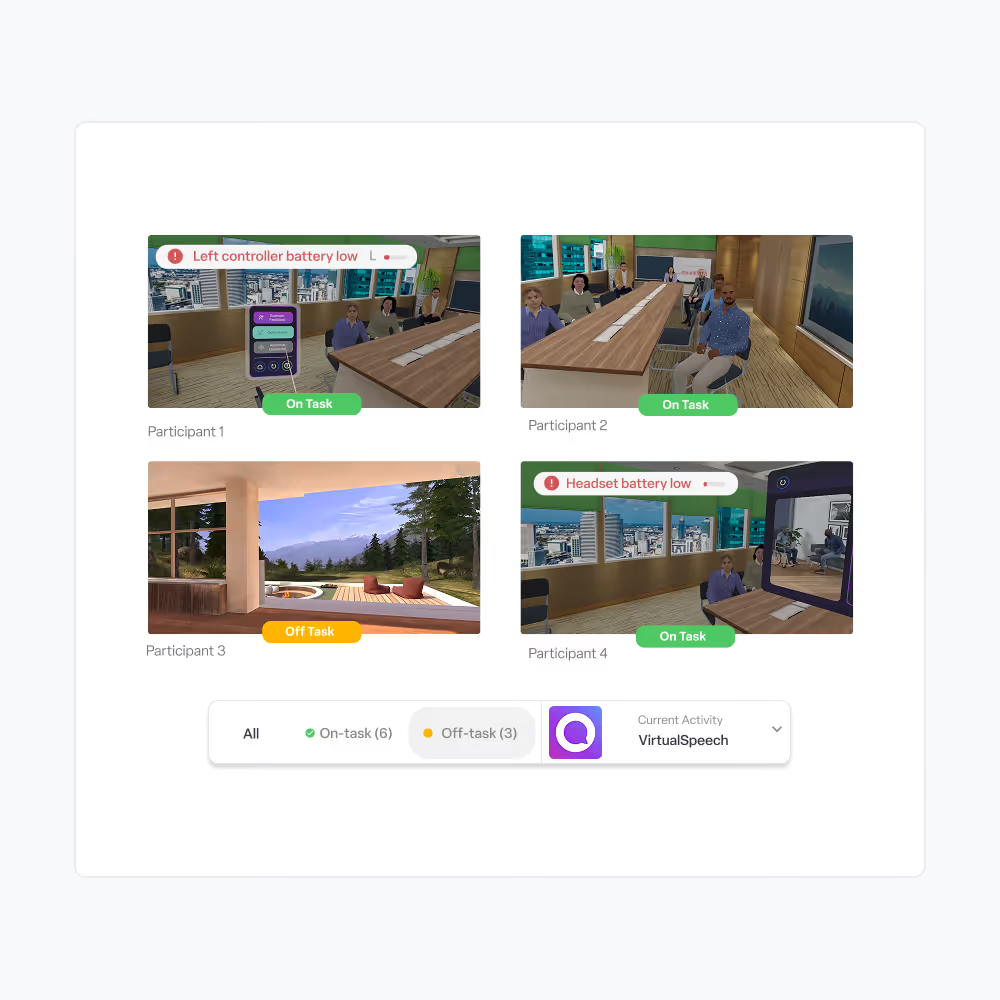
View all screens in real time
Immediately see who’s on-task, who’s stuck, and who might need help. Spot and fix technical issues like low batteries before they disrupt the session.
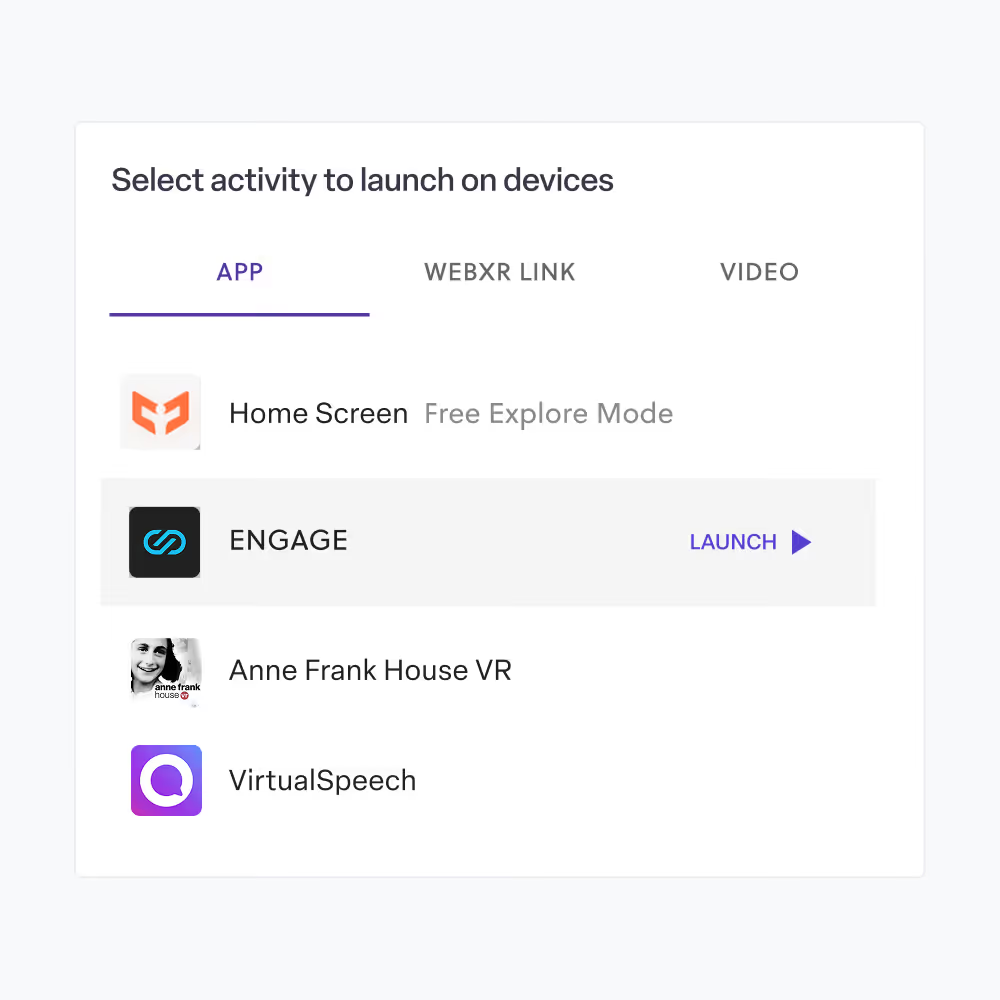
Seamlessly switch between activities
Launch any app, WebXR link, or video across every headset in a Room with a single click. Instantly place participants into the right VR experience, so your session stays organised and on track.
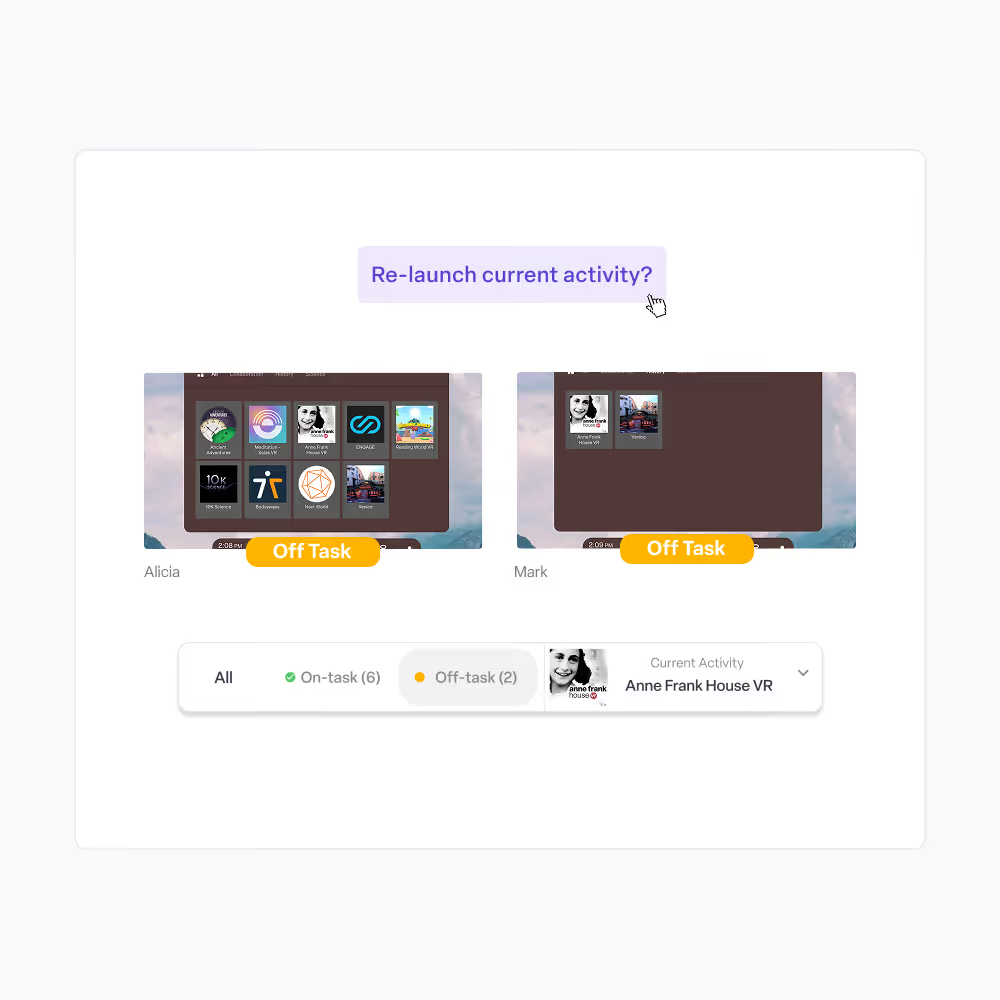
Keep users engaged and lessons moving smoothly
With the on-task/off-task view, you'll know when someone moves away from the assigned activity. Relaunch the current activity for off-task participants, keeping the group in sync.
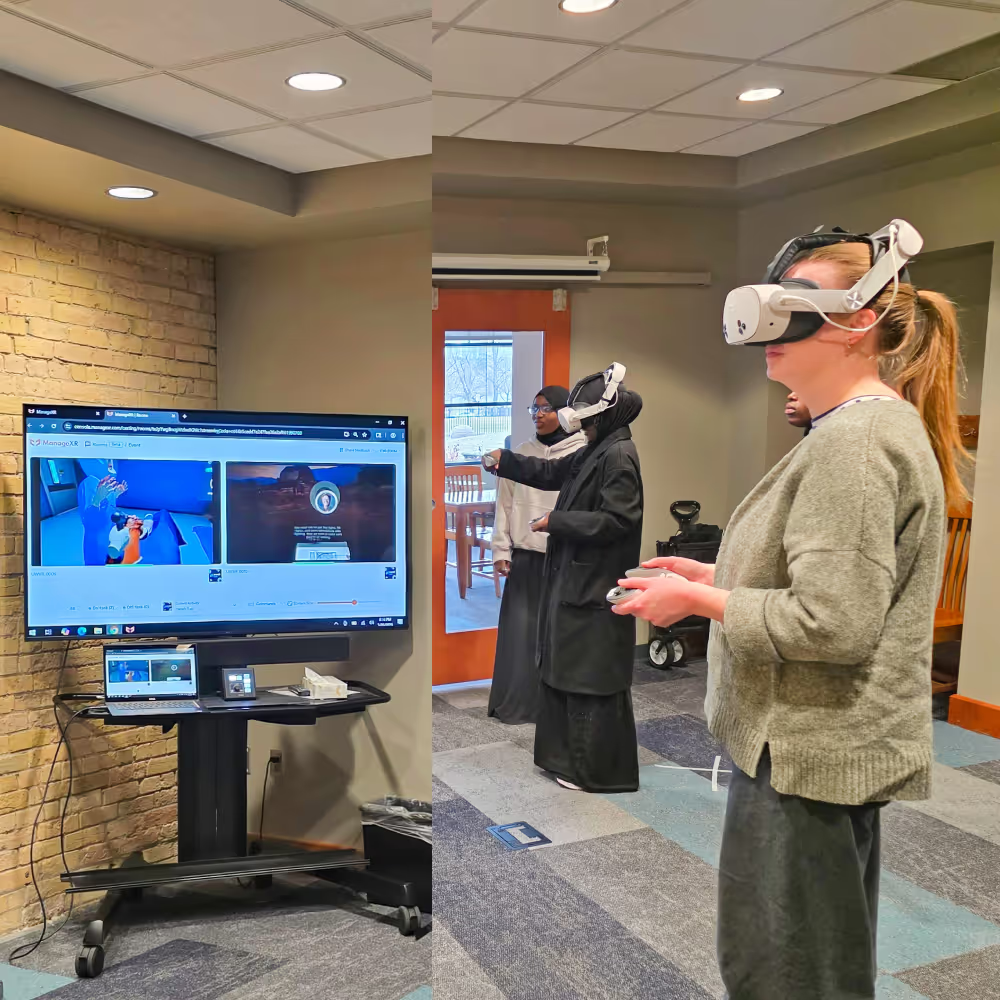
MDI uses Rooms to run VR career training
Since 2024, Minnesota Diversified Industries (MDI) has offered immersive career exploration modules across multiple industries, powered by Transfr. With Rooms, their hands-on VR sessions run smoother than ever before.
People who completed virtual reality trainings
Faster set up time
Power your VR classrooms, trainings, and events

Education
Launch VR content across the classroom, guide students remotely, and keep students on task.

Training
Lead a team through a virtual training session, observe their progress, and intervene when someone needs help.

Events
Lead engaging VR experiences, launch content simultaneously, and spend less time troubleshooting.
What our customers are saying
"Getting a group of 16 people in VR to launch the right activity at the same time is actually quite difficult. Rooms solved that problem."
IT Professional
"I don’t think I’ll ever go back to the other casting methods after Rooms"
Delaney Z, VR Operations Lead
"To see what students are doing in VR is a security blanket a lot of teachers need."
Assistant Principal
"I used Rooms with a group of students and it was a game changer! It made the management and support of students much, much easier."
Paul S, EdTech Consultant
FAQs
Do my devices need to be enrolled in ManageXR to use in a Room?
Yes, devices must be enrolled in ManageXR under your organization in order to be added to a Room. If you do not have a subscription to ManageXR, sign up for a free trial and get immediate access to Rooms.
Can I use different headset models in the same Room?
Yes. Rooms can be used for all VR headset models supported by ManageXR. For Meta devices, they must be running firmware version 68 or higher to view the screen.
Do all my devices in my Room need to be on the same configuration?
No. Devices can be in different configurations and still be added to the same Room. However, devices can only launch activities that are already installed on the device. This means that if you plan to launch activities to all devices in a Room, it’s best to ensure they share the same configuration. That way, every device will have access to the activities you want to run.
Do all devices need to be on the same Wi-Fi network?
No. Devices do not need to be on the same Wi-Fi network to be included in a Room. You can start a Room for devices located anywhere, as long as each device has an active internet connection. Keep in mind that a stable network connection is required for real-time monitoring and for launching activities to devices. If a device goes offline, it will temporarily stop displaying its screen in the Room until it reconnects.
Can I change the activity during a session?
Yes. You can launch apps, WebXR links, and videos directly within a Room. Devices must already have the activity downloaded to it via its configuration in order for you to launch the activity during a session.
What happens if a device disconnects or goes offline during a session?
The device will be marked as “Offline”, and will reconnect once the device is online again.
How can I get more help onboarding?
We offer comprehensive onboarding support, and our average human response time is less than 2 hours. You can access our onboarding resources or contact our customer support team at support@managexr.com for personalized assistance. For any other questions or support, please don’t hesitate to contact us.
Is there a limit to how many devices I can include in a single Room?
You can add up to 30 devices to a single Room.
Can participants leave or switch activities on their own?
Yes, participants can leave or switch activities between content available on their devices while in a Room. You can remotely place users back into the desired experience.
What types of activities can I launch through Rooms?
You can launch applications, WebXR links, and video content directly within Rooms. The content must be downloaded to your devices in order to launch. To do this, add your content to a configuration, and add your devices to that configuration.
Experience a simpler way to teach with VR
Start a 30-day free trial. No credit card required.

