
Getting Started with Rooms: Lead VR classrooms and trainings with ease
Rooms gives you real-time visibility and control over a group of headsets. This guide walks you through setting up and running your first Room, step by step.
Ready to run your first session?
Jump straight in and create a Room in a few minutes.
What is Rooms?
Rooms is a live dashboard for managing VR classroom sessions, training sessions, and events. Get a real-time view of every participant screen from one dashboard and start any app or experience across all headsets at once. Your users stay focused, and you stay in control.
- View up to 30 devices on one screen. See who's on task, guide users remotely, or share the in-headset experience with other viewers.
- Keep headsets in sync. Switch activities from the dashboard with one command across your entire group of devices.
- Cut down on setup time and access. Create a Room ahead of time and share it with facilitators.
What's in this guide
Pricing & how to upgrade
Add Rooms from the Subscription page of your ManageXR account. Charges are prorated to your next renewal, and education discounts apply. Requires a ManageXR Premium subscription.
Beginning October 1st, 2026, Rooms exits beta and becomes a paid add-on for ManageXR's Premium and Enterprise tiers. If you used Rooms during beta, the core experience will feel familiar, with major improvements to streaming uptime and reliability. Questions about custom billing or invoicing? Contact sales@managexr.com.
Create a Room
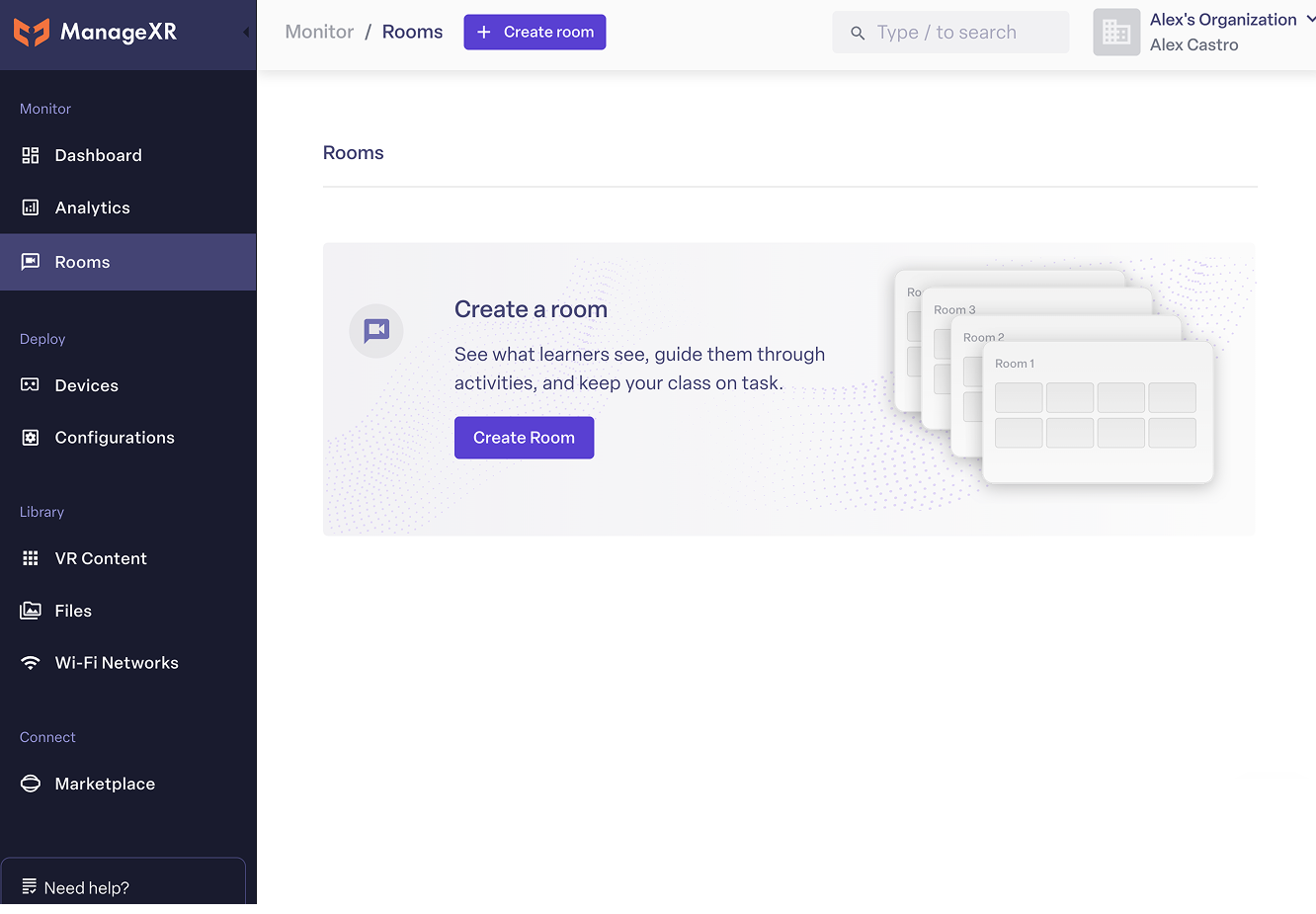
Navigate to the Rooms tab in your ManageXR account and select Create Room.
- Assign devices. Filter by tag or configuration to find the right headsets.
- Select a starting activity. Choose the app, video, or WebXR experience that launches when the Room starts.
- Start now or save for later. Build a Room in advance to save time in the classroom or event.
Allow devices to skip the in-headset streaming prompt so streams start immediately without each wearer accepting. Adjust this in your configuration settings.
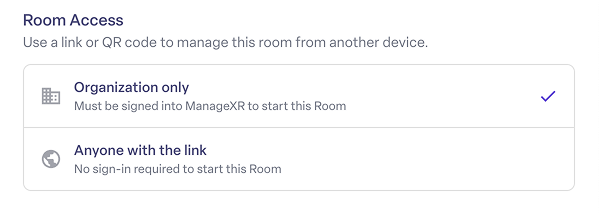
Share a Room like a Google doc
Once a Room is configured, you can hand it to a facilitator with a reusable link or QR code that lets them start the Room from any desktop, tablet, or phone.
Anyone with the link lands directly on the Start Room page for that Room, and cannot access anything else in ManageXR unless they are a member of your organization.
Anyone with the link or QR code can start this Room, so only share it with people you trust to facilitate.
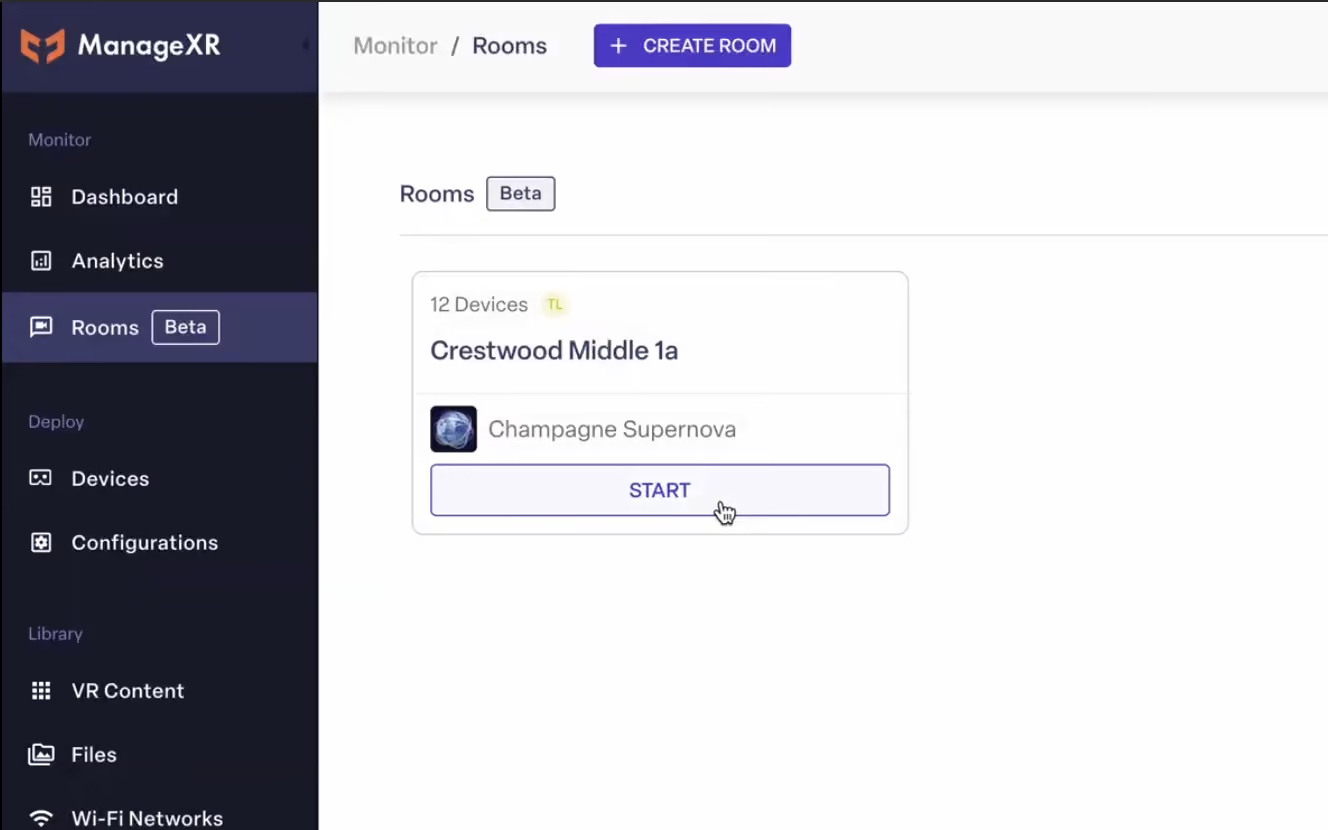
Start your Room
When it's time to run your session, open your Room and select Start Room. A new tab opens with a live stream of every device in the Room.
Devices join automatically, so the learner only has to put on the headset. Your selected starting activity launches as soon as the Room starts. If none is set, each device follows its assigned Configuration.
Distribute headsets and power them on before starting a Room.
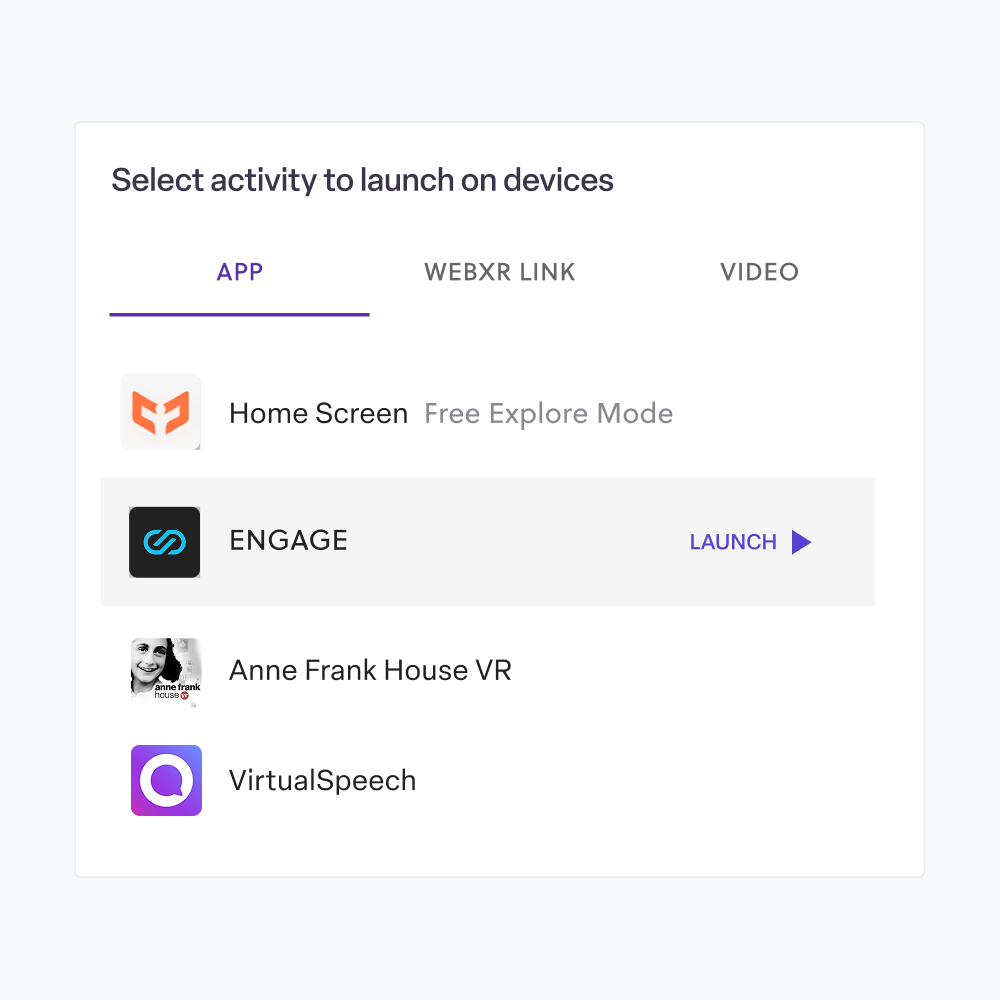
Launch participants into an activity
Change the current activity to switch everyone to a different app, video, or WebXR experience. The command is sent across the Room and your learners stay in sync.
You can also remotely restart, power off, or adjust the volume and brightness of every device from the dashboard.
During a live session
Customize your view
Hide, rearrange, and resize screens to fit the session. Assign device nicknames to identify participants, and save them for next time the same people use the same headsets.
Focus on one learner
Need to help someone one-on-one? Hover over a single screen to launch activities or adjust device settings for just that headset, without affecting the rest of the Room.
Stay ahead of problems with live alerts
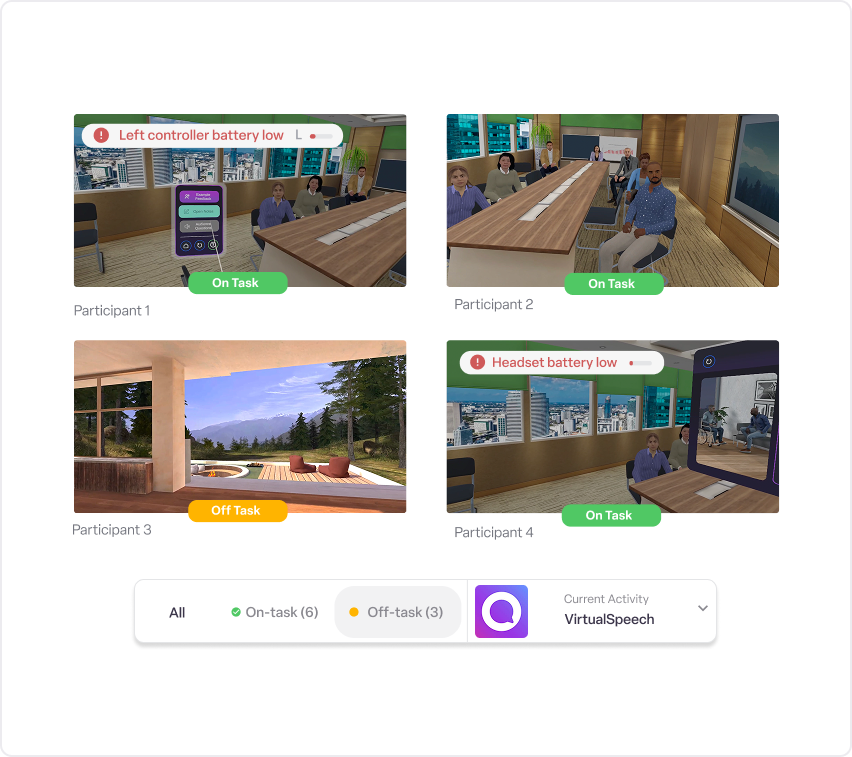
Alerts show when a learner strays from the current activity. Filter and send commands to on-task or off-task learners so no one gets left behind.
Battery alerts warn you before a controller dies, so your learners are never interrupted mid-session.
Troubleshooting
Most session issues come down to power, network, or the streaming prompt. Here are the fixes for the problems facilitators hit most.
A device isn't joining the Room
Make sure the headset is powered on, enrolled in ManageXR, and assigned to the Room. If it still won't join, confirm it's online in the Devices tab.
The stream won't start
The wearer may be waiting on the in-headset streaming prompt. Allow devices to skip the prompt in your configuration settings so streams start automatically.
A learner keeps drifting off task
Use the off-task filter to find them, then push the correct activity to just that device, or hover over their screen for one-on-one guidance.
A controller or headset is running low
Watch the battery alerts on the dashboard and swap in a charged device before it interrupts the session.
Remote power-off is supported on PICO devices running PUI 5+ and Meta devices enrolled via Meta Horizon managed services.
End a Room
- Click End Room.
- In the confirmation, select End Room and power off devices to close the Room and shut down the headsets.
If you don't power off devices, they stay on in their current activity until a participant exits it in-headset or turns off the device.
FAQs
Why isn't my device showing up in a Room?
The device must be powered on, enrolled in ManageXR, and assigned to that Room. Check that it appears online in the Devices tab. If it's online but not streaming, the wearer may be waiting on the in-headset streaming prompt.
Do learners have to accept a prompt before streaming?
By default, yes. You can allow devices to skip the in-headset streaming prompt in your configuration settings so streams start immediately without each wearer accepting.
Can facilitators run a Room without a ManageXR login?
Yes. Share a reusable link or QR code and the facilitator lands directly on the Start Room page, no sign-in required. They cannot access anything else in ManageXR unless they're a member of your organization.
How is Rooms priced and billed?
Rooms is a paid add-on priced per device: $42 per device/year or $4 per device/month, based on your number of ManageXR licenses. It requires a ManageXR Premium subscription and is eligible for education discounts.
How do I add Rooms, and when does it take effect?
Add Rooms from the Subscription page of your ManageXR account. It takes effect right away, and charges are prorated until your next renewal.
I bought ManageXR through a reseller. How do I get Rooms?
Resold accounts are billed through your reseller rather than the in-app Subscription page. Contact your reseller or reach us at sales@managexr.com to add Rooms to your plan.
I have custom billing or want to pay by invoice.
For custom billing, invoicing, or other purchasing questions, contact sales@managexr.com and we'll get you set up.